
Configuring Flow Pages
The Flow Pages Configurator creates Flow Pages: pages in HubSpot for the Flows that aren't about any one record, like a team's processes, its onboarding or its vacation cover. Each page is built from titled sections of Flows, and every page is listed on Flow Home.
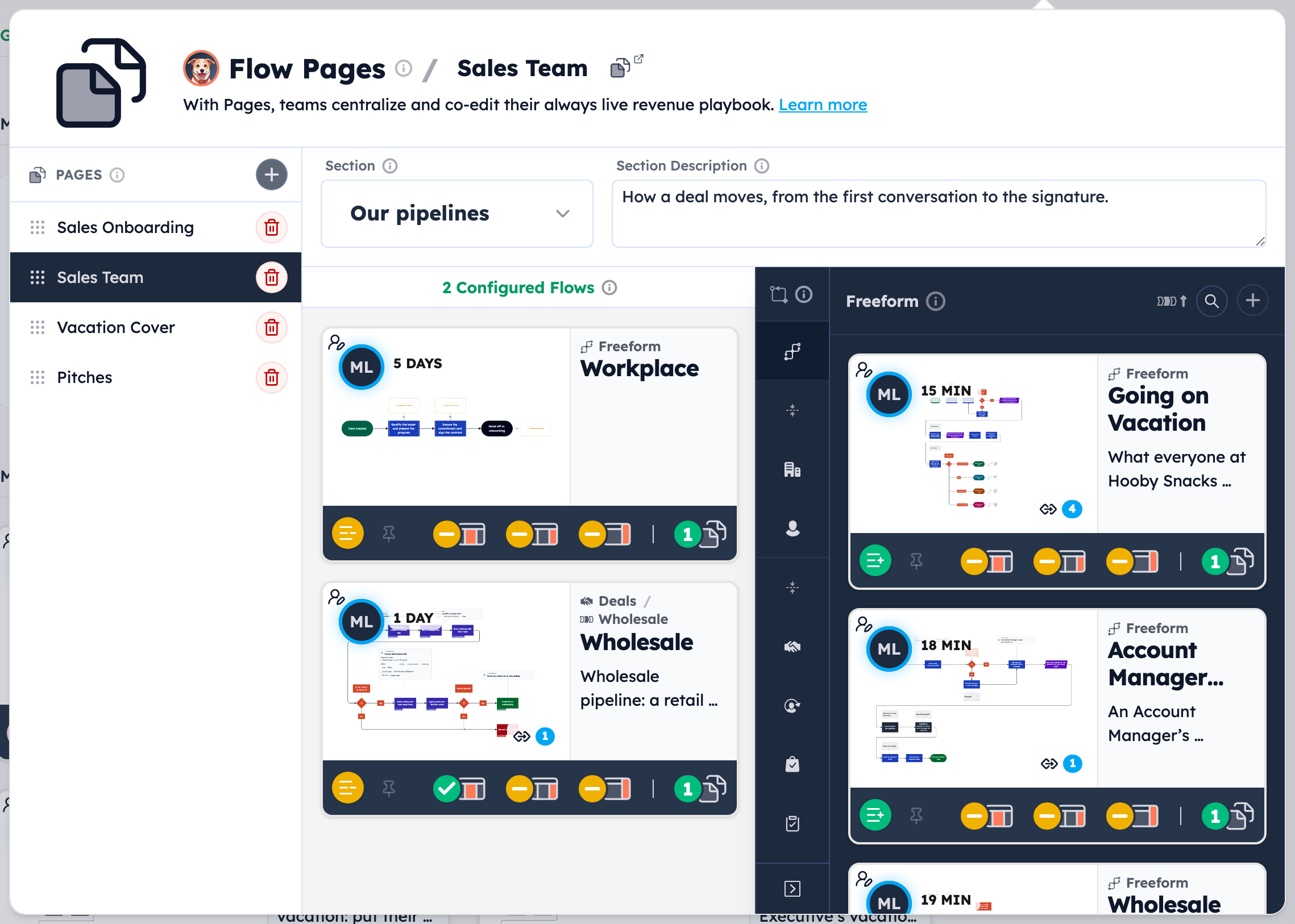
Opening the Configurator
- From the Header. The Pages button in the Header opens the configurator. With a Flow open, it starts on the first page that Flow is on.
- From a Flow card. The Pages button on a Flow card opens it on that page.
- From HubSpot. On Flow Home, Configure Pages and each page's Configure Page open it, and on a Flow Page, Configure Flow List opens it on that section. They're only shown to people who can change pages.
Pages
The Pages list on the left holds every Flow Page, in the order Flow Home shows them.
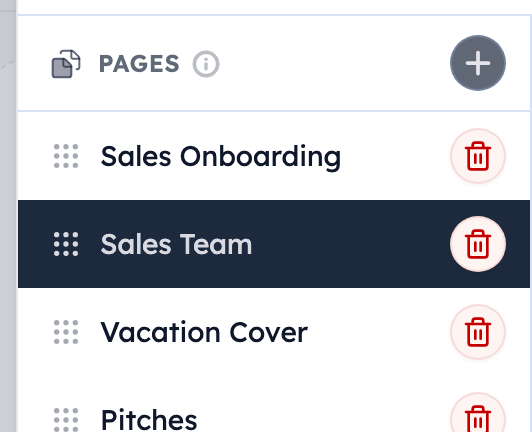
- Add a page with the plus button beside the Pages heading. It starts as New Page.
- Rename a page by clicking its name in the list, or in the configurator's title.
- Reorder pages by dragging them by their handles. Flow Home follows the same order.
- Delete a page with its delete button. It's removed from HubSpot straight away.
When the configurator was opened from a Flow, the pages that Flow is already on are marked with a check.
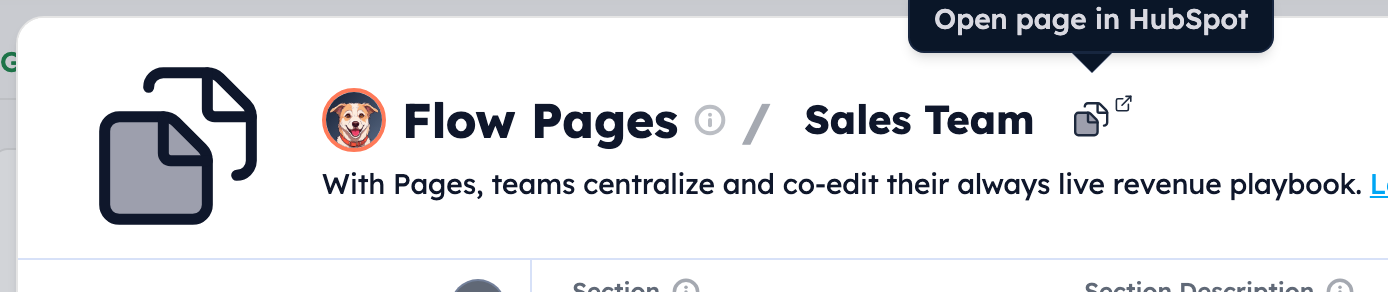
The configurator's title names the page you're working on. The Open page in HubSpot button after its name opens the page as your teams see it, in a new tab.
Sections
Every page is made of one or more sections, shown in order down the page, each with its own title, description and Flows. They work the same way as a card's sections: switch, add, reorder and delete them from the Section menu, and rename one by clicking its name in the Section box. For a walkthrough, jump to Sections in Configuring Flow Cards.
Section Description is a note for the people reading the page, like what the section's Flows are for. In HubSpot, it sits under the section's title in a Directions panel that readers open when they need it.


The Section's Flows
The middle column lists the Flows in the selected section, in the order the page shows them. Drag a Flow by its handle to move it, or use the button at the far left of its toolbar to take it off the section. On a Flow Page, every Flow shows as a large image with its title and description, so there's no display style to choose.
Adding Flows
Flows are added the same way as on a card: pick a group in the strip on the right, then use the add button on a Flow's card. Search the list with the magnifying glass, or create a new Flow with the plus button and it's added straight away. For more, jump to Adding Flows in Configuring Flow Cards.

Only people whose role can change Flow Pages can add, remove or rearrange their Flows. An Admin sets roles in User Access.