

Pinning Flows
Pin the Flows you use most, so they're always a click away. Your pins are your own: no one else sees them, and the same pins show in Hooby Flow and in HubSpot.
Pinning a Flow
Pinning works differently in each place you see a Flow. To unpin a Flow, click its pin again: the button's tooltip says Unpin Flow while the Flow is pinned.
In Hooby Flow
With a Flow open, click the pin () beside its name in the Header. It turns blue once the Flow is pinned.

You can also pin a Flow without opening it: every Flow card, on the Dashboard, in the Sidebar menus and in search results, has a pin on its toolbar.
In HubSpot
Open the Flow in the Flow Navigator with View, then click the pin beside its name. The Flow tiles on record cards, Flow Home and Flow Pages don't have a pin of their own.
Finding Your Pinned Flows
Your pinned Flows are listed most recently pinned first, in a different place in each.
In Hooby Flow
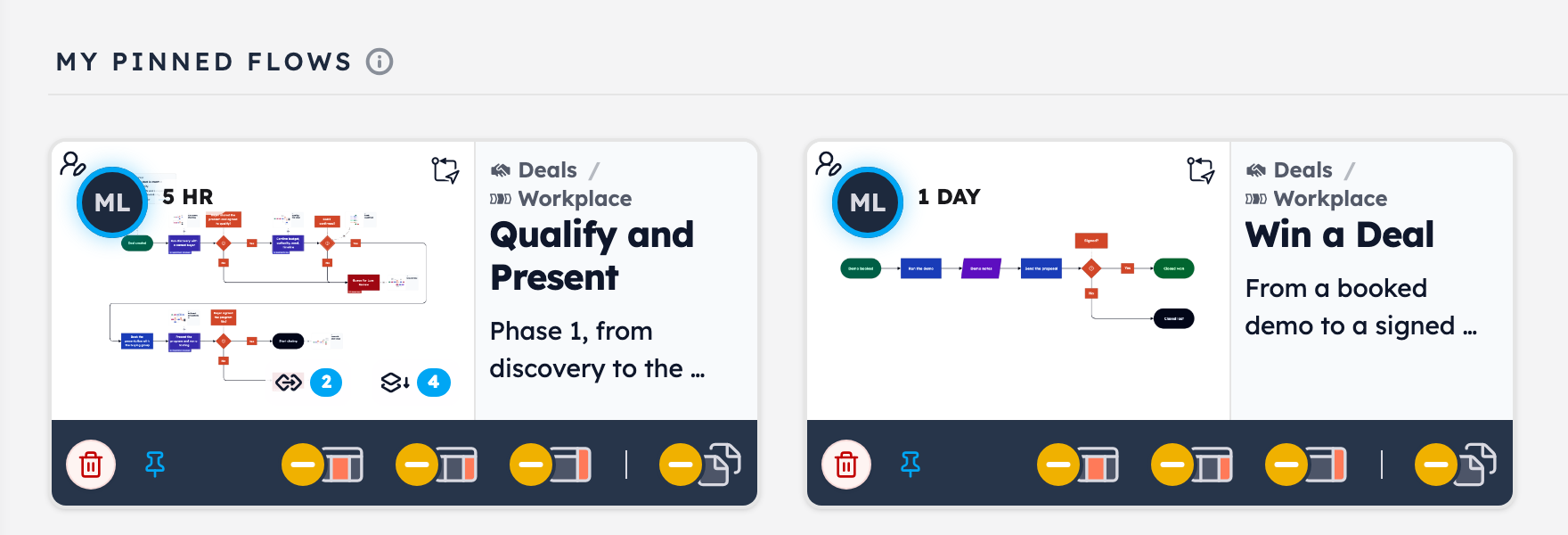
They're in the My Pinned Flows section of the Dashboard, as Flow cards. Click a card to open the Flow.
In HubSpot
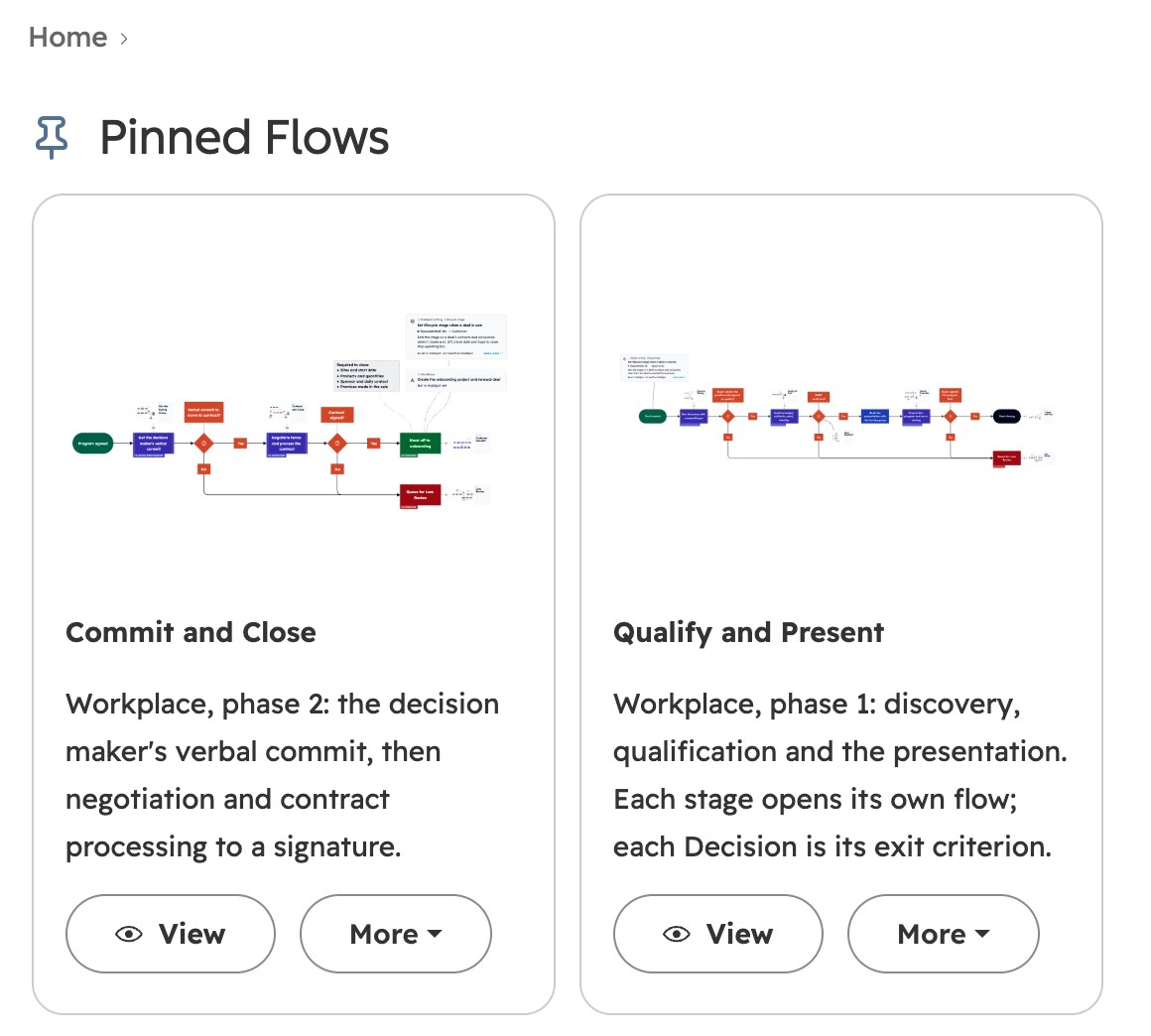
They're in the Pinned Flows section at the top of Flow Home, as tiles. View opens a Flow in the Flow Navigator, and More has the tile's other actions, like opening it in Hooby Flow.
With nothing pinned yet, the section shows a No Pinned Flows tile with a link to open the Dashboard.