
Flow Navigator
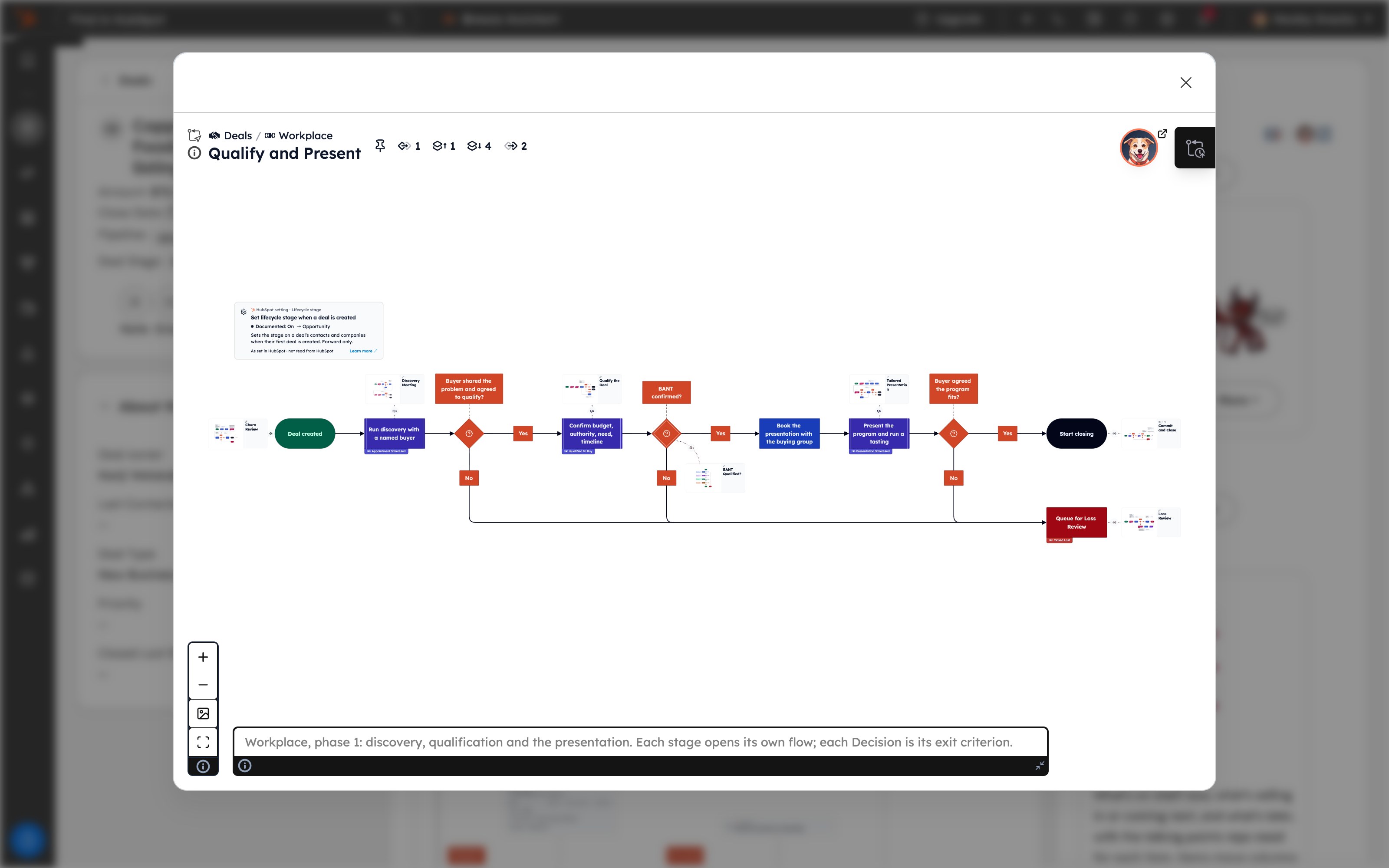
The Flow Navigator opens a Flow on top of HubSpot, to read it without leaving the record or page you're on. From there you can follow its links into other Flows, look back through its edits in the Flow Timeline, and step back through every Flow you've opened along the way.
Opening it
View on any Flow tile, on a record card, Flow Home or a Flow Page, opens the Flow in the Navigator, over the page. When the Navigator is closed, the tiles refresh to match what you've just seen.
Like the Flow Editor, the Navigator opens a Flow where you last left it.
Reading the Flow
The Navigator shows the Flow for reading: it can't be changed here. Move around and zoom the same way as in the Flow Editor, with Zoom in, Zoom out, Capture Flow as image and Fit view in the bottom left, beside the Flow's description. For more, jump to Navigating the Flow.
HubSpot accessory cards work as they do in Hooby Flow: Open In HubSpot in a card's menu opens that workflow, sequence, form or campaign in HubSpot, in a new tab.
Following links
Click a Flow link card, like a Child Flow or a Next Flow, to open that Flow right here in the Navigator. It opens framed on the element that links back to the Flow you came from.
The link indicators beside the Flow's name count each kind of link. Click one to list those Flows, then open one, or use Show on diagram to move to its link card.
The trail
The top left shows the open Flow's name, with its object type and pipeline (or Freeform) above it. Every Flow you've opened in this Navigator stacks up behind the name, oldest first. Hover the stack to spread it out, and click a Flow to open it again. Going back adds to the trail rather than cutting it short, so nothing you've opened is lost.
Pinning
The pin button () beside the name pins or unpins the Flow. Pinned Flows show on Flow Home and the Dashboard. For more, jump to Pinning Flows.
The Flow Timeline
The Timeline tab () on the right edge slides out the Flow's edit history, by day. Choose a day or an edit to see the Flow as it was then. A card beside the tab shows the moment you're looking at, and clearing it returns to the Flow as it is now.
Links followed while looking at an earlier moment open the linked Flow as it was at that same moment. For more, jump to Navigating the Flow Timeline.
Opening it in Hooby Flow
Open in Hooby Flow, beside the Timeline tab, opens the current Flow in Hooby Flow in a new tab, already signed in.
The Navigator can also be opened inside Hooby Flow, where it floats in a panel over the page. For more, jump to the Flow Navigator in Hooby Flow.

For the other cards and pages in HubSpot, jump to HubSpot.