

Why Hooby Flow?
Getting Started
Guides
Anatomy of a Flow
Viewing Flows
Editing Flows
Flow Cards
Flow Pages
Flow Strategies
Flow Library
Workspace Settings
Troubleshooting
Viewing FlowsViewer Features
Viewing Contextual Help
Hooby Flow has its help built in. Wherever you see the info icon (ⓘ) beside a heading or a control, click it to read what that part of the app does, without leaving what you're doing.
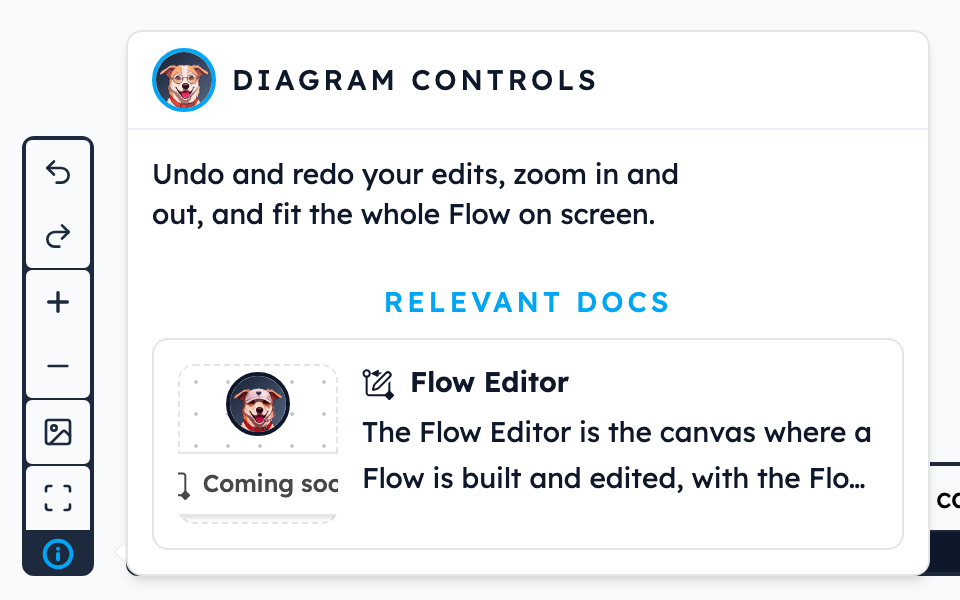
Where to Find It
The info icon sits beside most of the parts of Hooby Flow that need explaining:
- The Sidebar, beside the Flows heading and each group of Flows.
- The Dashboard, beside each section's heading.
- A Flow, at the foot of the diagram controls, on the Flow's description and beside the Flow Timeline's heading. Editors also see one on each element in the Palette.
- The Flow Cards Configurator and the Flow Pages Configurator, beside their headings and sections.
The Flow Navigator in HubSpot has the same help on its controls and its Flow Timeline.
What It Shows
Each help panel has a title, a short explanation and, under Relevant Docs, cards for the docs pages that cover that part in full. Click a card to open its page in a new tab, so you keep your place in Hooby Flow.
Only one help panel is open at a time. Click the icon again, or anywhere outside the panel, to close it.