

Knowing What's Changed
When someone changes a Flow you've opened before, it's marked Updated until you open it again, in Hooby Flow and in HubSpot alike. The Flow Timeline then shows you what changed.
The Updated Tag
The tag works the same in Hooby Flow and in HubSpot:
- It's for other people's changes. A Flow is marked when someone else has changed it since you last opened it. Your own changes never mark it.
- Hover it to see when. The tooltip says how long ago the Flow was last changed.
- Opening the Flow clears it, wherever you open it. Opening a Flow in HubSpot clears its tag in Hooby Flow too, and the other way round.
- Only Flows you've opened are marked. A Flow you've never opened has nothing to compare against, so it isn't marked.
Where you'll see the tag is different in each.
In Hooby Flow
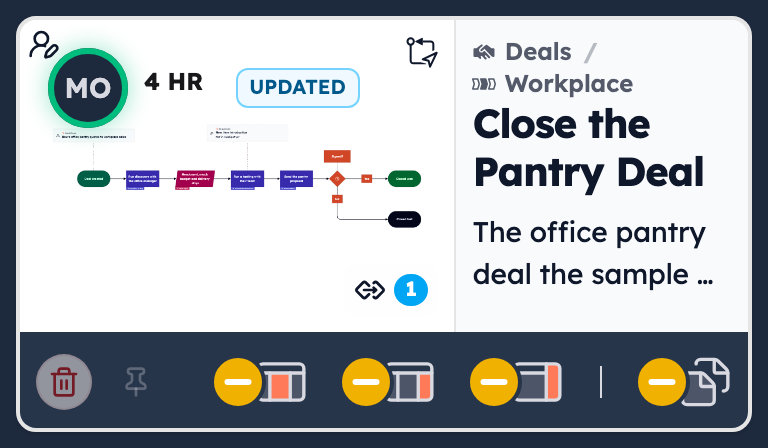
The tag is on Flow cards, on the Dashboard, in the Sidebar menus and in search results. Beside it, each card shows who last changed the Flow and how long ago.
In HubSpot
The tag is on Flow tiles: on the Tab Card, Sidebar Card and Preview Card, in Pinned Flows on Flow Home, and on Flow Pages. It sits beside the Flow's name.
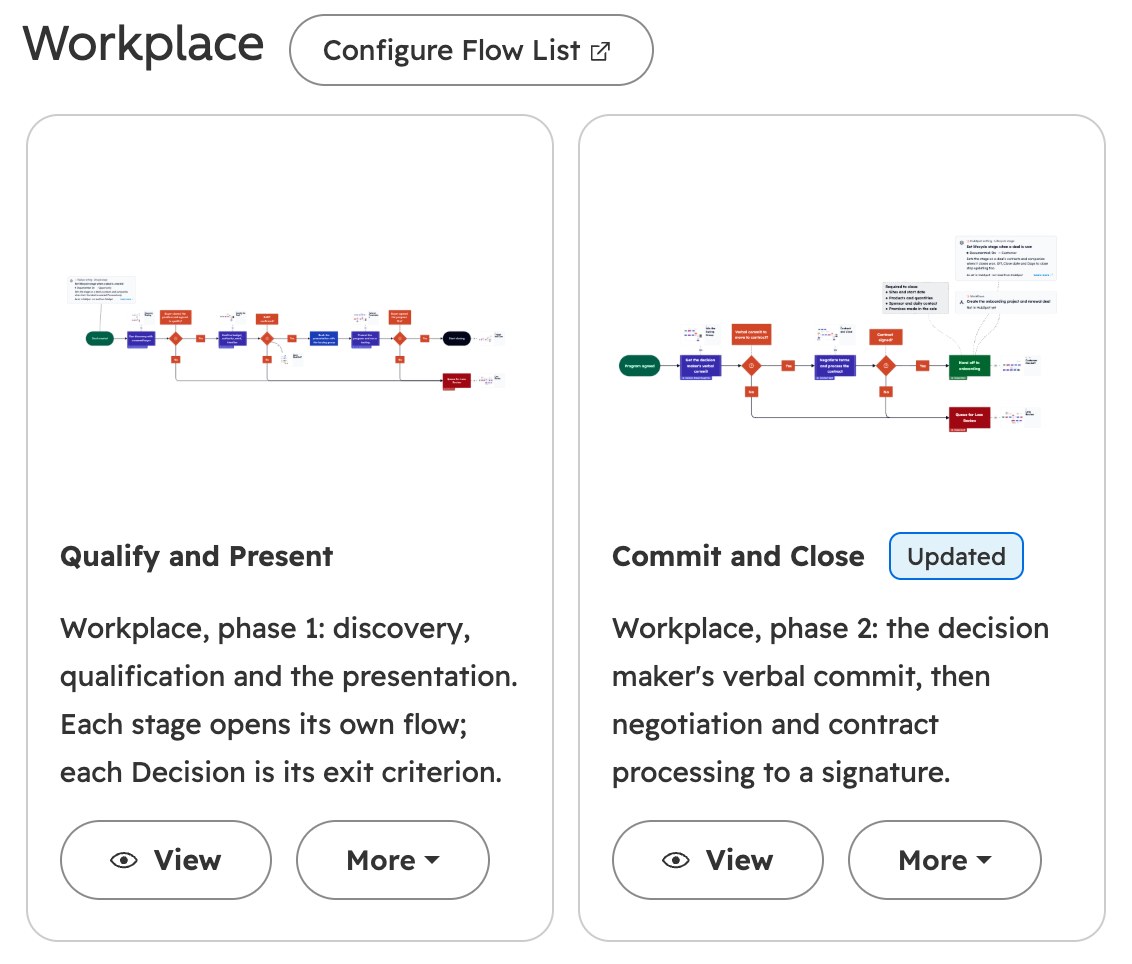
When you close a Flow you opened with View, the tiles refresh and its tag is gone.
Seeing What Changed
This works the same in Hooby Flow and in the Flow Navigator: open the Flow and its Flow Timeline. Each day shows who changed the Flow, and expanding it lists every edit. Select an edit to see the Flow as it was then, and compare it with the Flow as it is now.