
Flow Editor
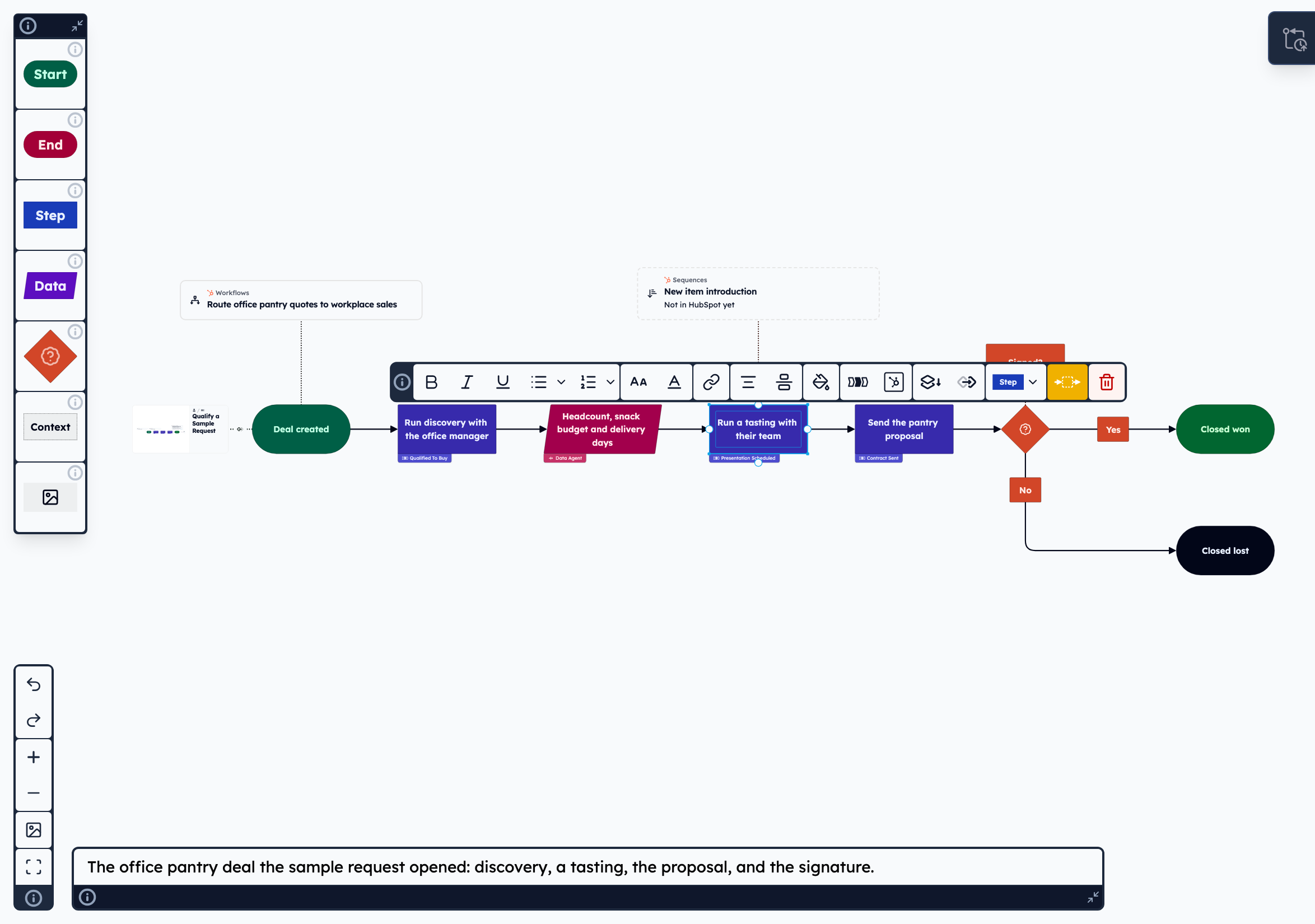
The Flow Editor is the canvas a Flow opens on in Hooby Flow. Everyone uses it to read a Flow, and anyone with edit access builds and changes the Flow right there. Every edit is kept in the Flow Timeline.
Opening a Flow
Click any Flow card, in the Dashboard, a Sidebar menu or search. The Flow opens where you last left it, at the same position and zoom. Following a link card from another Flow opens the linked Flow framed on the element that links back.
The Header above the canvas shows the Flow's name and where it belongs, and its link indicators list the other Flows this one links to.
The canvas
Drag the background to move around, and scroll or pinch to zoom. For more on reading and moving around a Flow, jump to Navigating the Flow.
Around the edges of the canvas:
- The Palette, in the top left, holds the elements to drag onto the canvas. For more, jump to Using the Palette.
- Element menus appear above an element when it's selected, with everything that can be done to it, like linking a Child Flow or adding a HubSpot accessory.
- The controls, in the bottom left, from top to bottom:
- Undo and Redo.
- Zoom in and Zoom out.
- Capture Flow as image (), to download or copy a picture of the Flow exactly as the canvas shows it. For more, jump to Exporting Flows as Images.
- Fit view, to fit the whole Flow on screen.
- The Flow description sits beside the controls. For more, jump to Editing the Flow Description.
- The Timeline tab (), on the right edge, slides out the Flow's edit history.
- Avatars, in the bottom right, show who else is in Hooby Flow, and who's looking at this Flow. For more, jump to Knowing Who's There.
Working together
Everyone sees the same Flow, live. When someone else changes it, the change appears on your canvas as they make it, with no need to reload.
When a Flow is read-only
Sometimes a Flow can be read but not changed. The Palette and the Undo and Redo buttons are hidden, the description can't be edited, and selecting an element shows why in place of its menu:
- No edit access. Your role can view this Flow but not edit it. An admin can change that in Settings.
- Viewing history — read only. You're looking at the Flow as it was at an earlier edit in the Flow Timeline. Clear the date shown beside the Timeline tab to return to the Flow as it is now.
- Linked to HubSpot — view only. The Flow was opened from a HubSpot record.
The Flow Navigator over the editor
The Flow Navigator button () in the Header opens the same Flow in a panel floating over the canvas, while the editor underneath stays usable. For more, jump to Flow Navigator.

For the other parts of Hooby Flow, jump to Hooby Flow.
To start building, jump to Creating Flows.