
Dashboard
The Dashboard is Hooby Flow's home screen. It gathers the Flows you've pinned, the Flows you've edited, and the Flows the whole team has edited most recently, with a quick introduction to the app at the top.
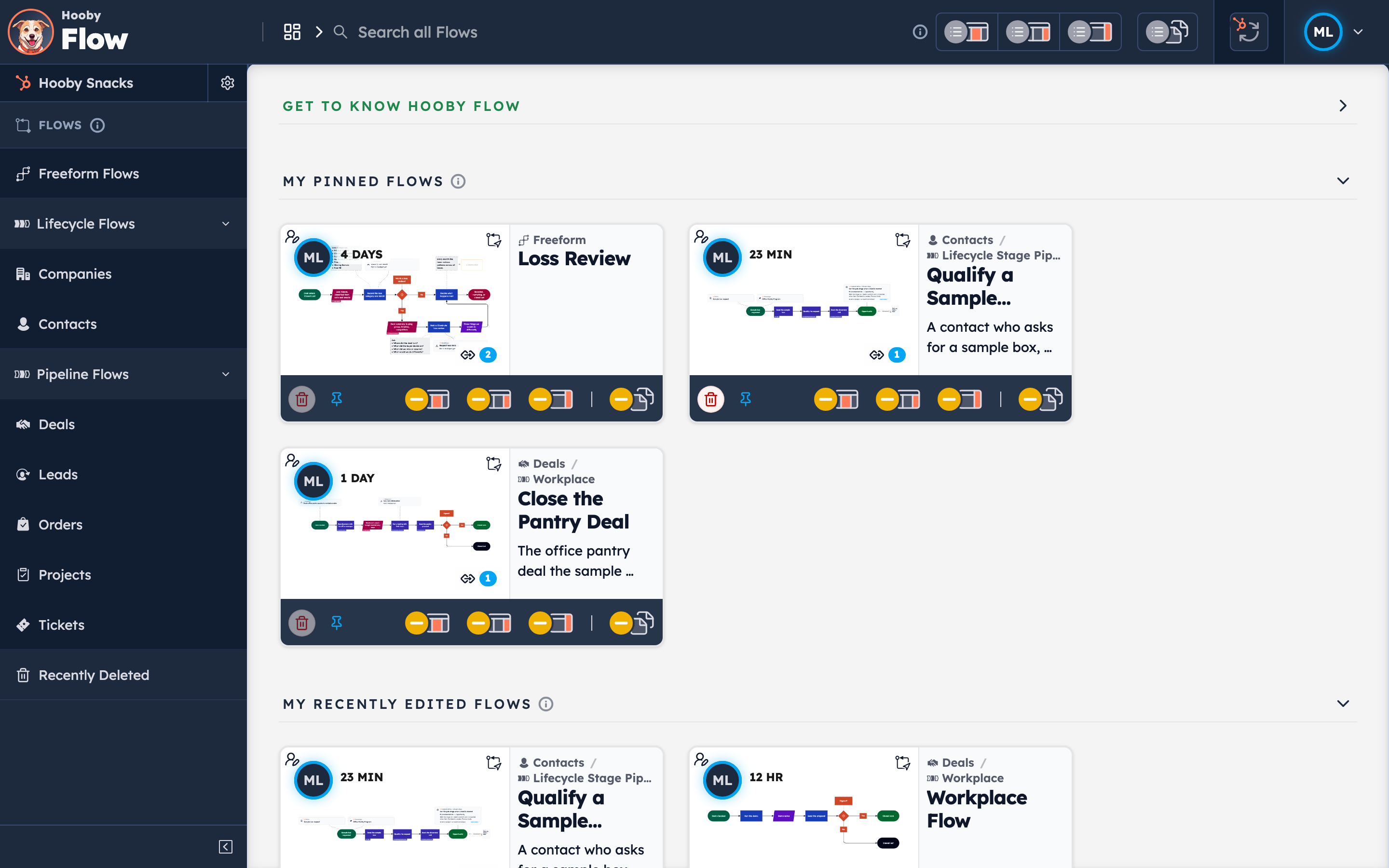
Getting to the Dashboard
- In Hooby Flow. Click the Home icon at the start of the Header breadcrumbs.
- From HubSpot. Every Hooby Flow card and page in HubSpot has the dashboard icon in its top right corner (), which opens the Dashboard in a new tab, already signed in.

Searching
The Search all Flows box in the Header searches every Flow in the workspace. Results open in a list under the box as you type.
Sections
Each section can be collapsed with the arrow beside its heading, and Hooby Flow remembers which ones you've collapsed.
- Get to Know Hooby Flow. Short introductions to Flows, Freeform Flows, Pipeline Flows, Flow Cards and Flow Pages. Each one opens the part of the app it describes, with an explanation beside it.
- My Pinned Flows. Flows you've pinned, most recently pinned first. Your pins are your own: no one else sees them.
- My Recently Edited Flows. Flows you've changed, most recently edited by you first.
- Recently Edited Lifecycle Flows, Recently Edited Pipeline Flows and Recently Edited Freeform Flows. The latest changes across the whole team, one section per kind of Flow. The Freeform section can include or leave out Freeform Flows that are Child Flows of a Lifecycle or Pipeline Flow, with Include Pipeline Children Flows.
Flow cards
Every Flow on the Dashboard, in the Sidebar menus and in search results is shown as a Flow card. Click a card to open the Flow in the Flow Editor.
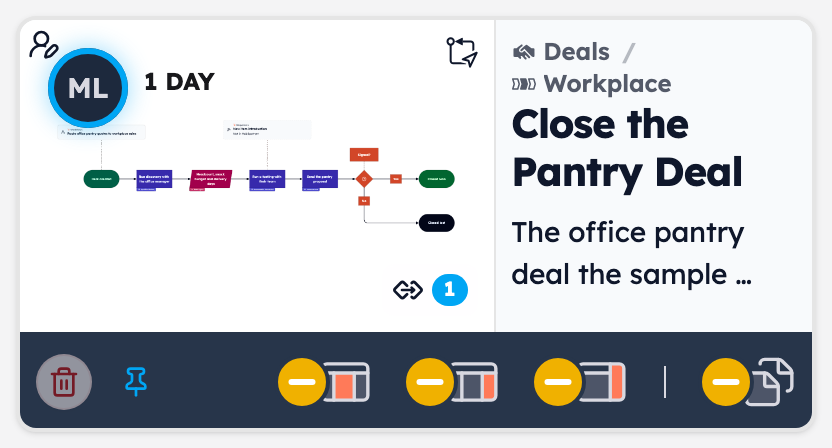
On the image:
- Last edited. Who last changed the Flow and how long ago. Hover the time for the exact date. The avatar also shows whether that person is in Hooby Flow right now. For more, jump to Knowing Who's There.
- Updated. The Flow has changed since you last opened it. Hover the tag to see when. For more, jump to Knowing What's Changed.
- Linked Flows. Badges for the Flow's Parent, Child and peer Flows. Click one to open that Flow.
- Flow Navigator (). Opens the Flow in the Flow Navigator without leaving the Dashboard.
Under the image, the Flow's object type and pipeline (or Freeform), its name and its description.
On the toolbar:
- Delete (). Moves the Flow to Recently Deleted for 7 days. It's disabled for Flows other Flows link to, and for people who can't edit the Flow.
- Pin (). Pins or unpins the Flow.
- Tab, Sidebar and Preview. Which HubSpot record cards show this Flow, and on which object types. Click one to open the Flow Cards Configurator for it.
- Pages. Which Flow Pages show this Flow. Click one to open the Flow Pages Configurator for it.

For the other parts of Hooby Flow, jump to Hooby Flow.