Navigating the Flow
Your teams meet Flows in two places: in Hooby Flow, the app where Flows are made, and in HubSpot, on the records and pages they already work. The two are always one click apart. Every Hooby Flow card and page in HubSpot opens Hooby Flow, and the HubSpot account name in Hooby Flow opens Flow Home in HubSpot.
This section walks through each surface and its parts, then the features everyone has wherever they open a Flow.
Flow Surfaces
Where Flows are made, and where your teams read them.
Hooby Flow is the web app for creating and editing Flows, and for choosing which Flows appear in HubSpot.
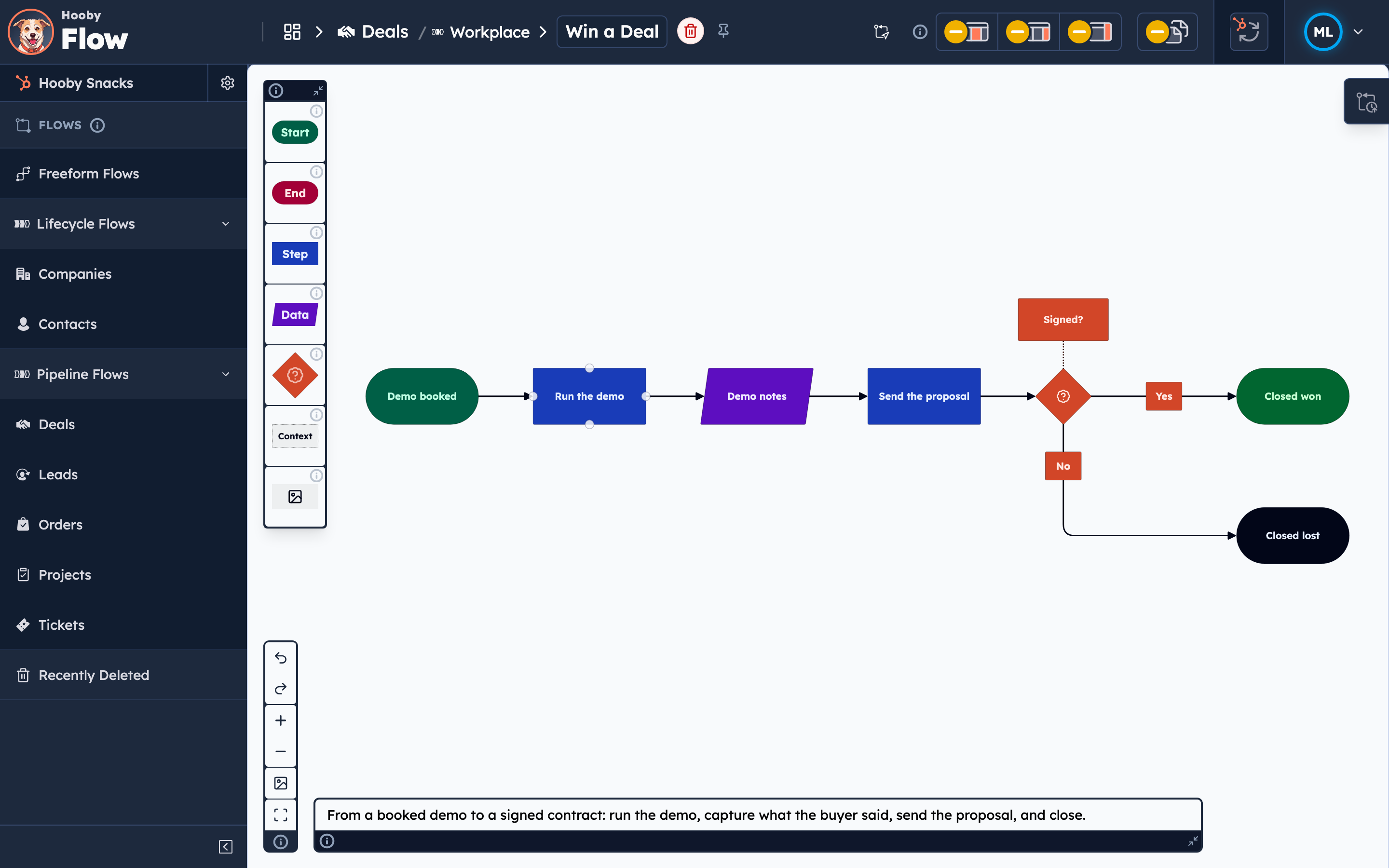
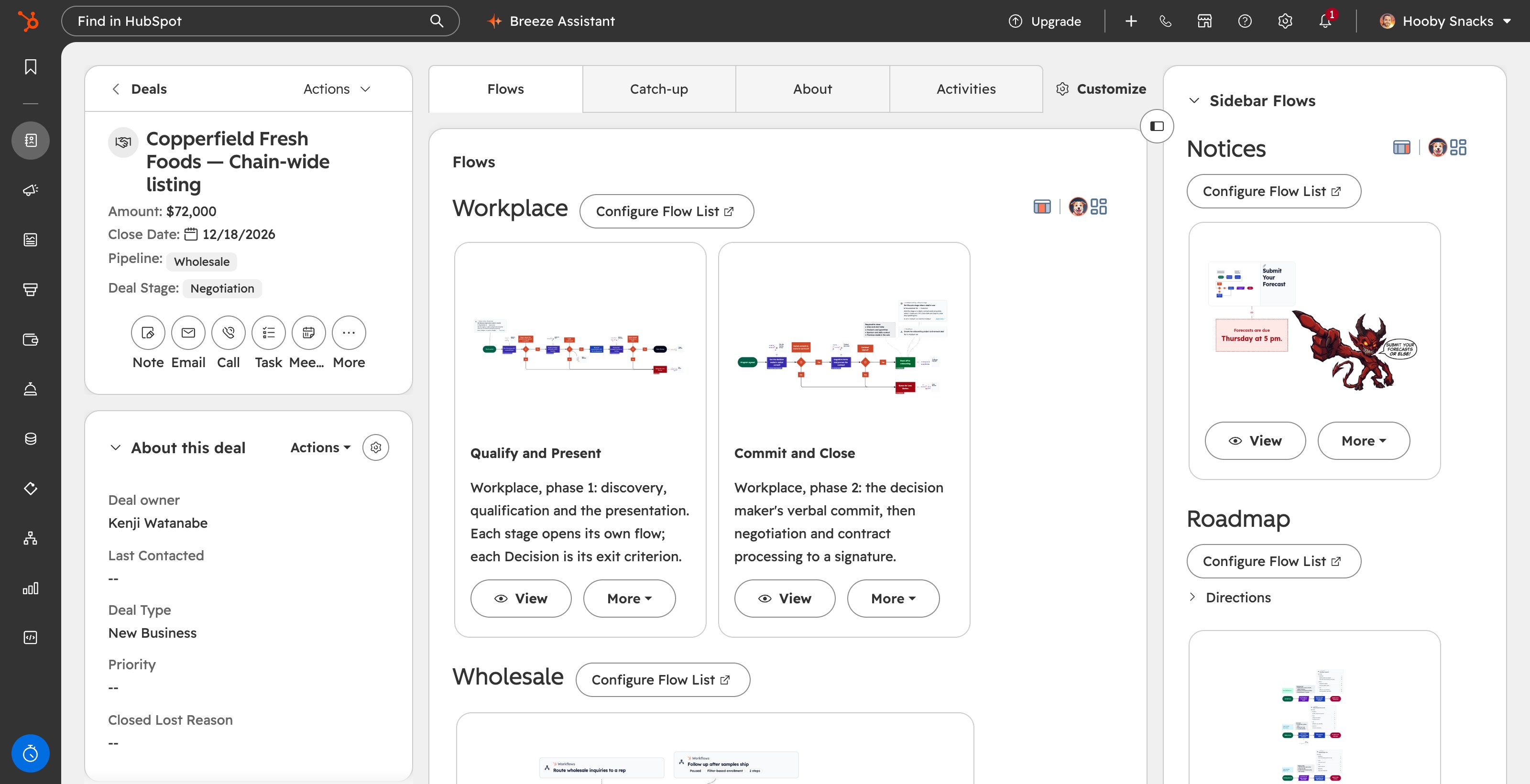
Flows inside HubSpot, on record cards and Flow Pages, chosen in Hooby Flow.
Inside Hooby Flow
The parts of the Hooby Flow app, and the tools that choose what HubSpot shows.
The Sidebar runs down the left of Hooby Flow, with the HubSpot account link to Flow Home, Settings, and every Flow grouped into Freeform Flows, Lifecycle Flows and Pipeline Flows.
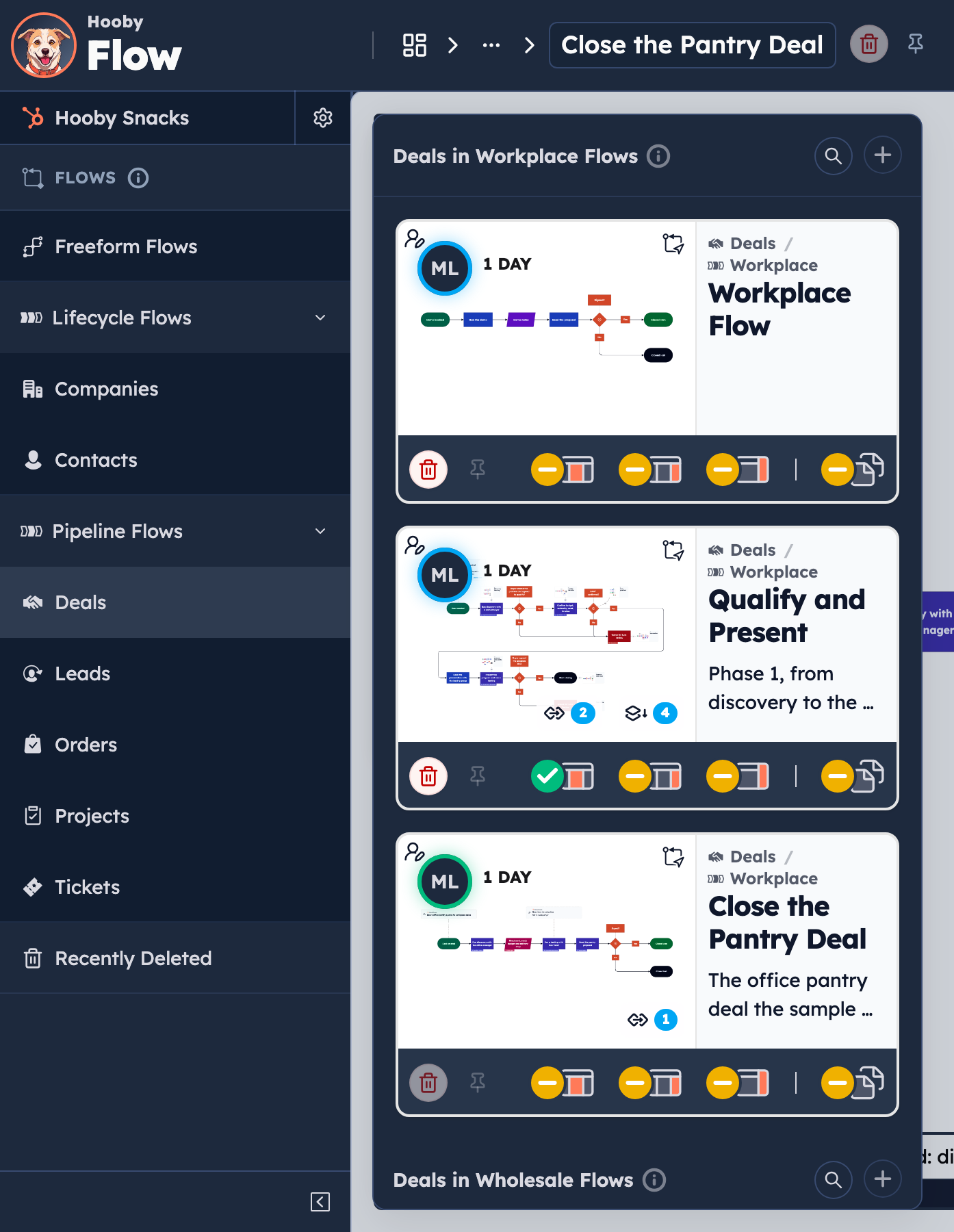
The Header runs across the top of every screen, with breadcrumbs and the controls for HubSpot cards, Flow Pages and HubSpot Sync.
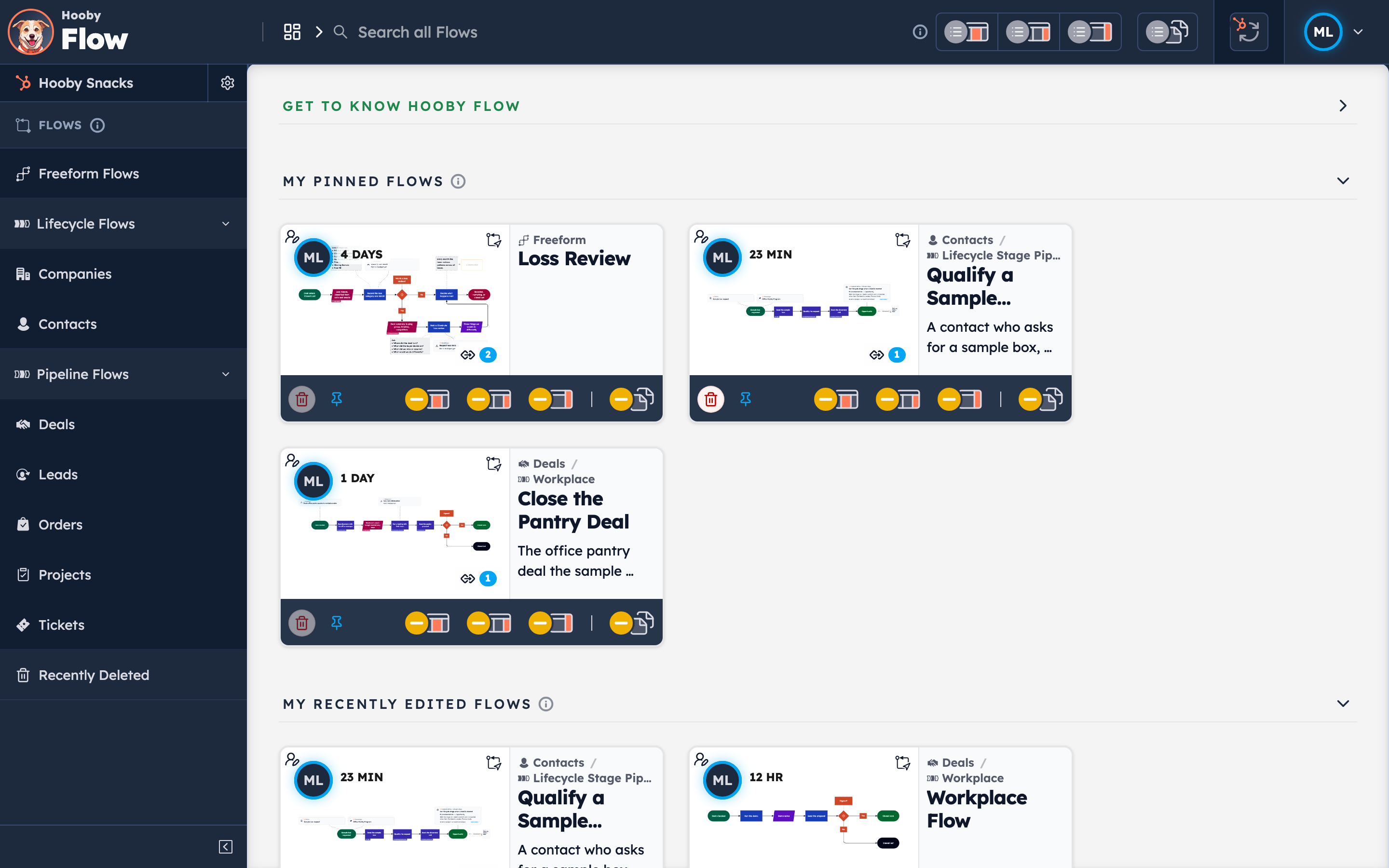
The Dashboard is Hooby Flow's home screen, with Pinned Flows, recently edited Flows and a quick introduction to the app.
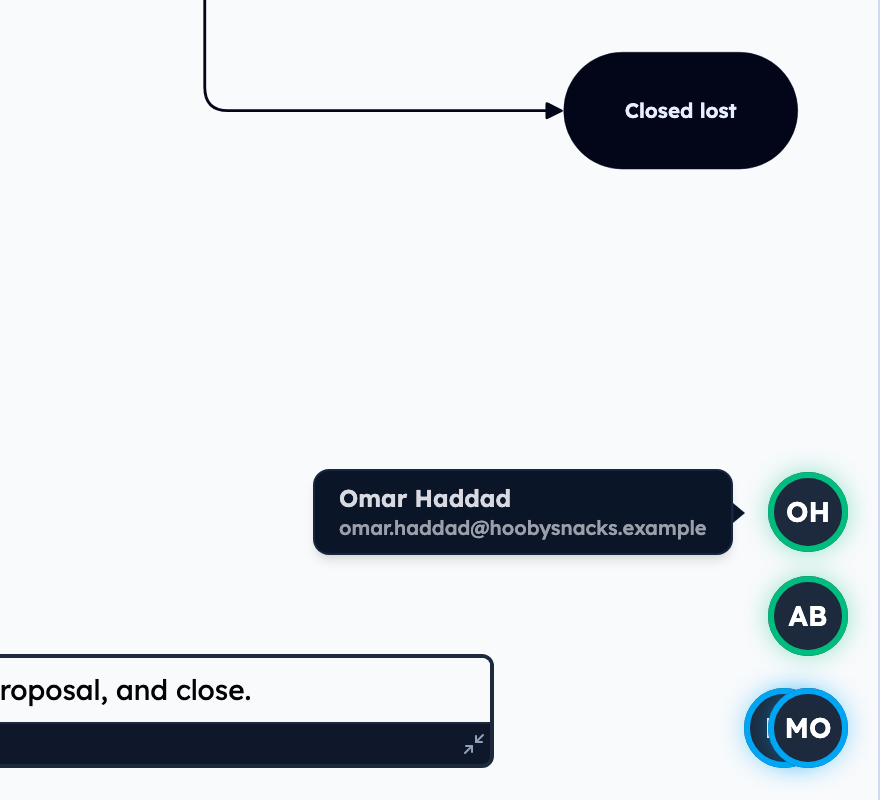
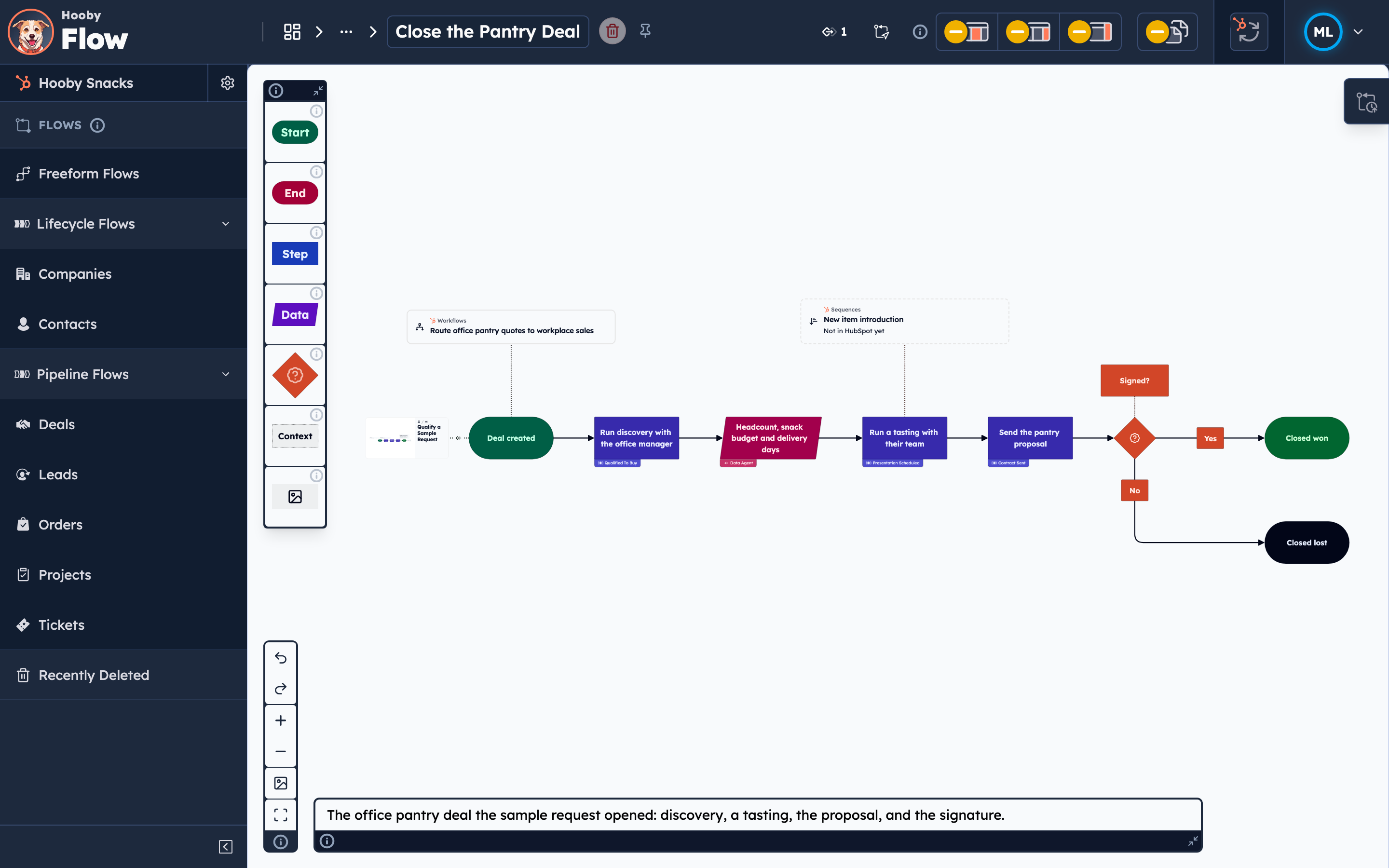
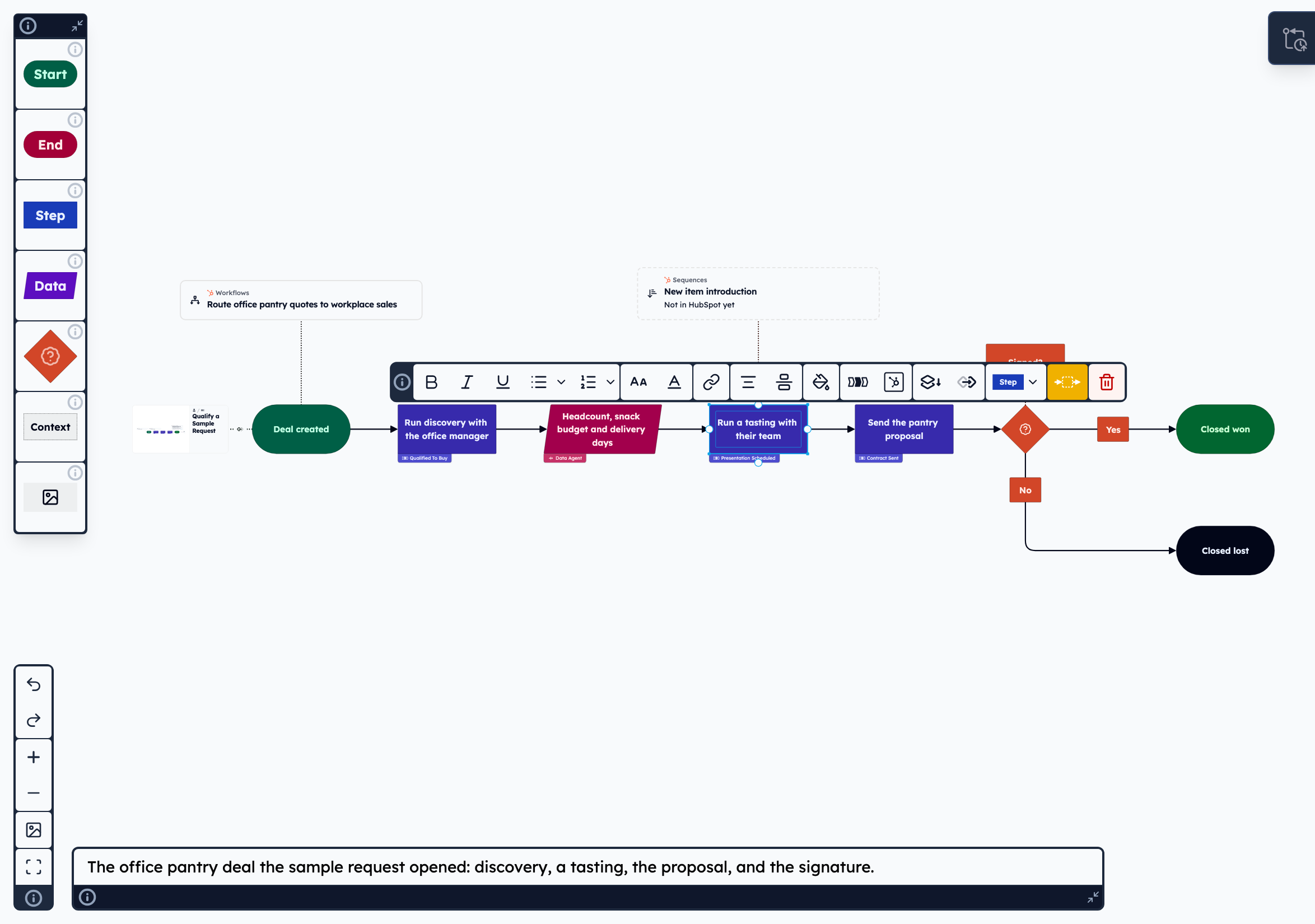
The Flow Editor is the canvas where a Flow is built and edited, with the Flow Timeline keeping every past edit.
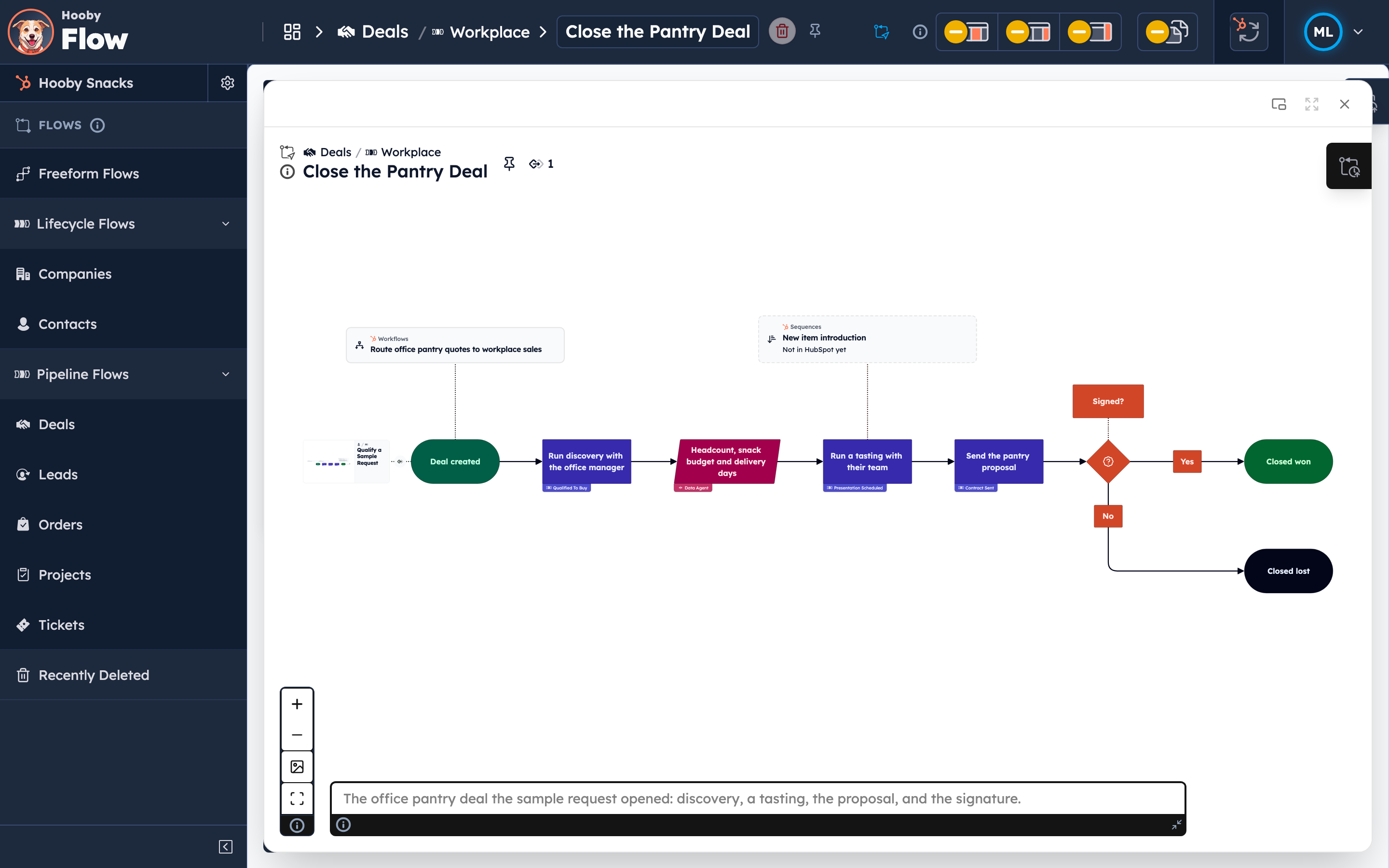
Inside Hooby Flow, the Flow Navigator floats in a panel over the page, to move, resize and keep open while you work underneath it.
Create Flow Pages in HubSpot, and choose the sections and Flows each page shows.
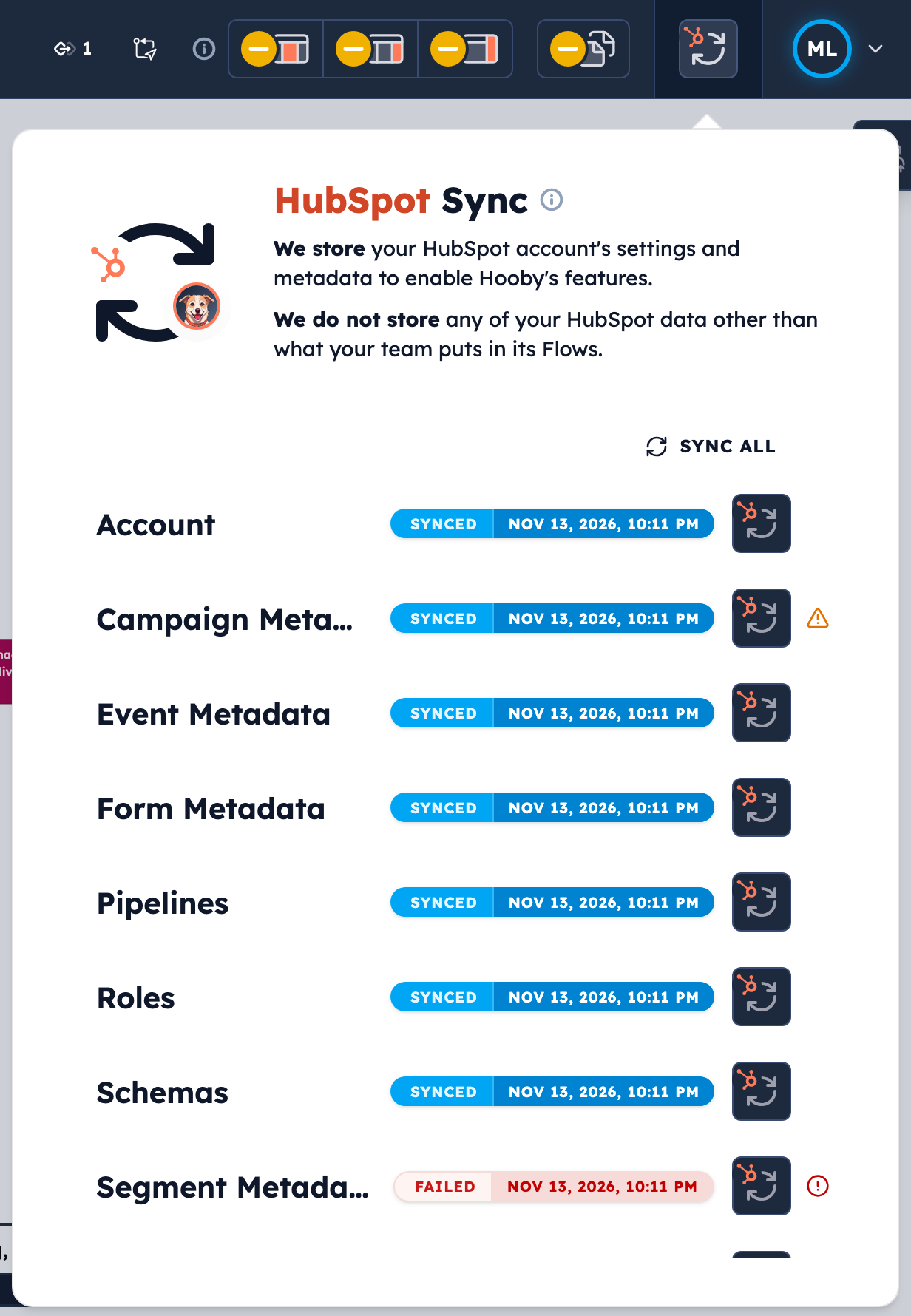
HubSpot Sync keeps Hooby Flow's copy of the HubSpot account's settings and metadata up to date, like users, pipelines, workflows and forms.
Inside HubSpot
Where your teams find Flows in HubSpot: on their records, on Flow Home and Flow Pages, and in the Flow Navigator.
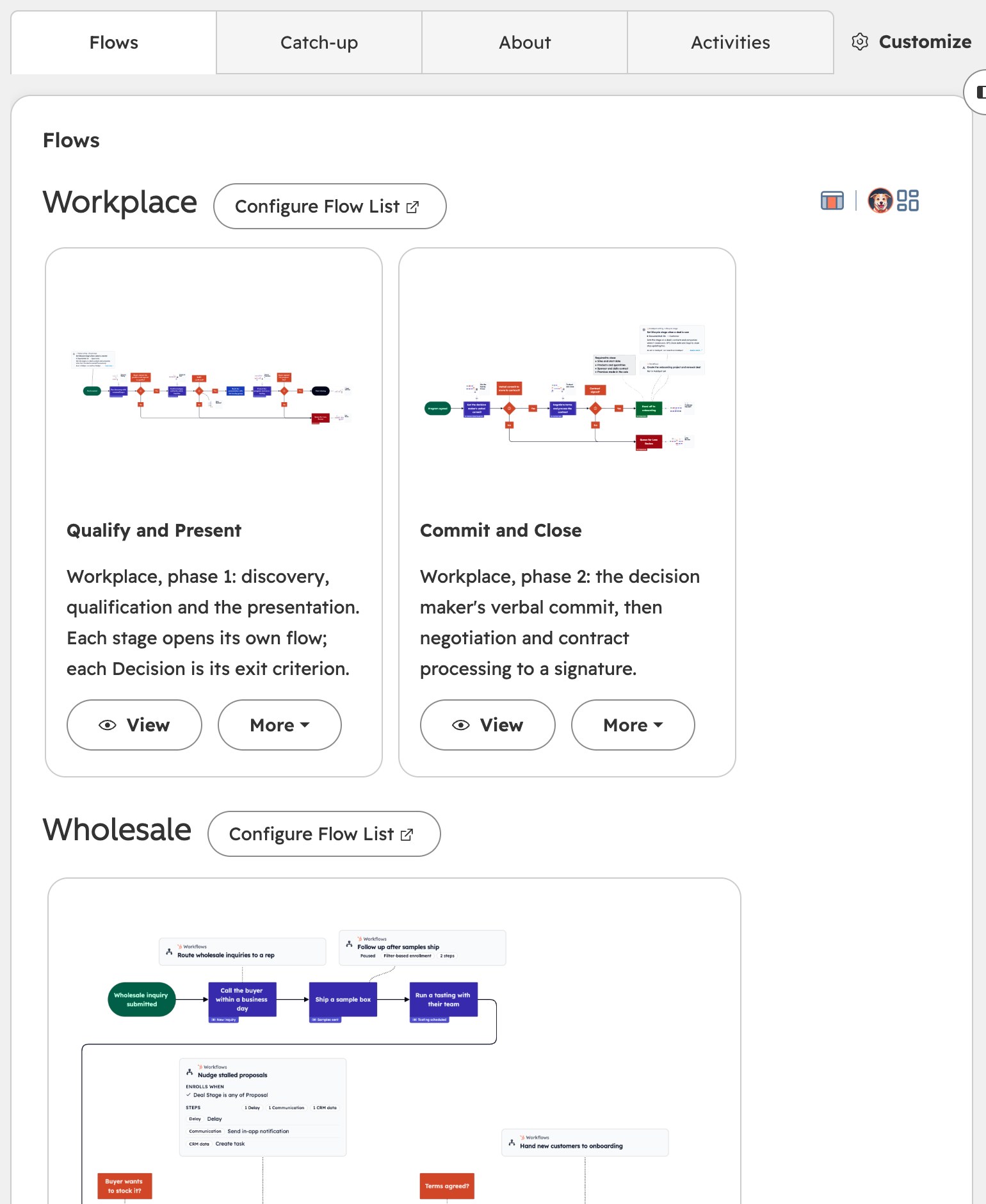
The Tab Card shows Flows on a tab of their own on a HubSpot record, with room for large tiles, chosen in the Flow Cards Configurator.
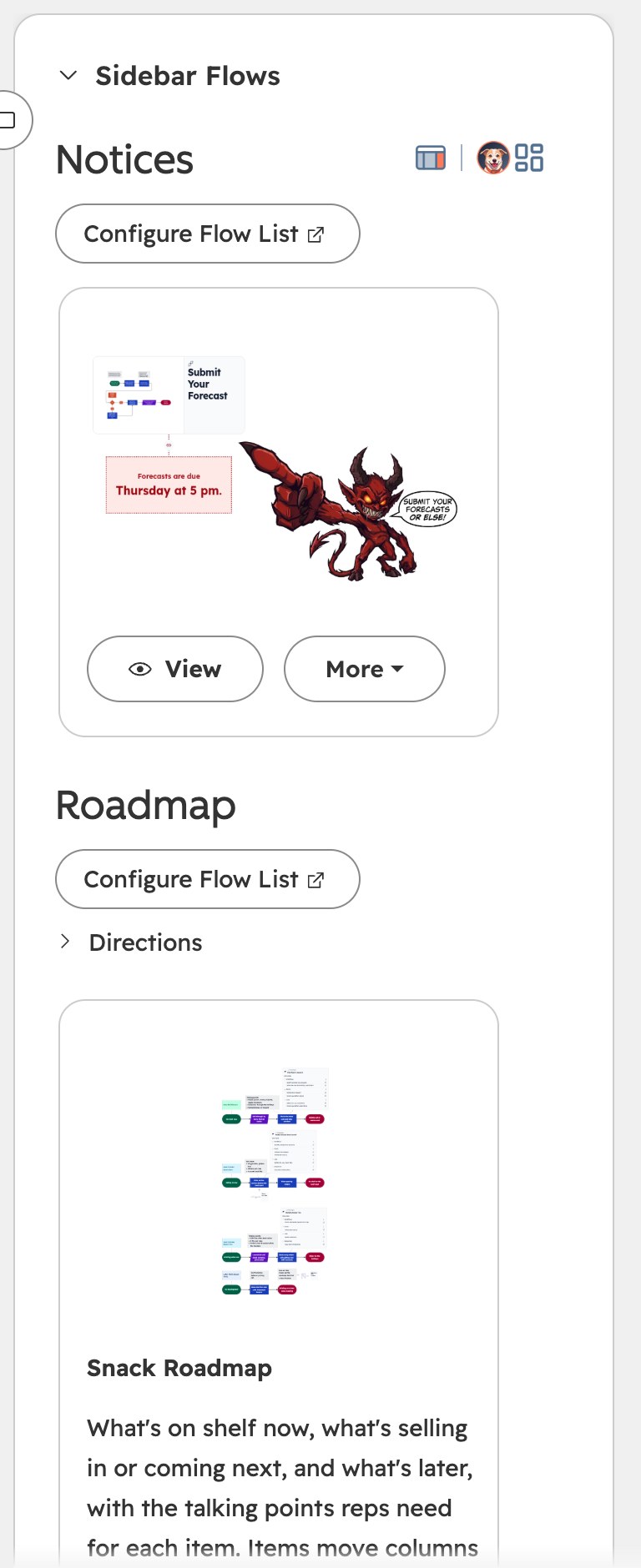
The Sidebar Card shows Flows in a HubSpot record's sidebar, as small tiles beside the record's details, chosen in the Flow Cards Configurator.
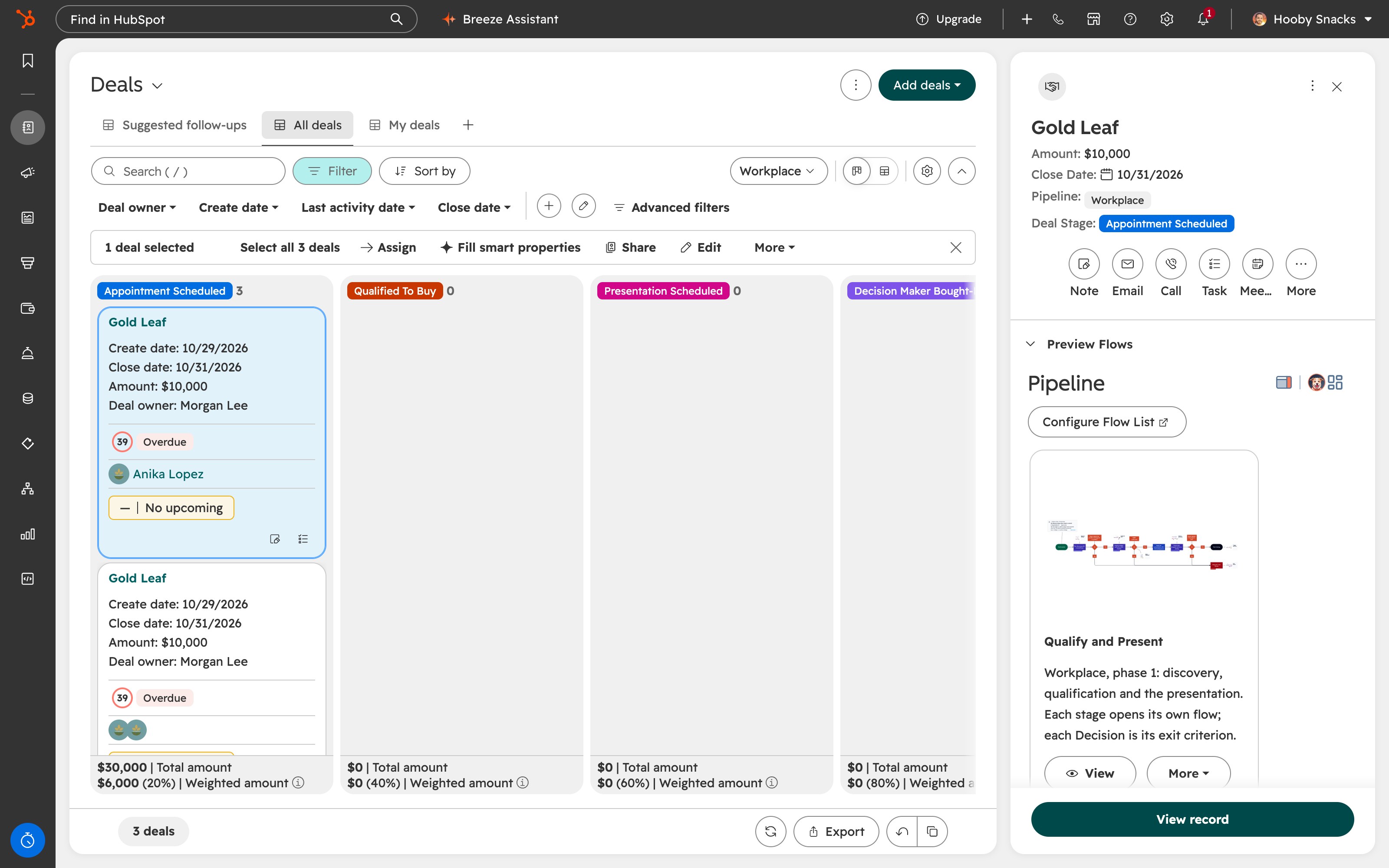
The Preview Card shows Flows in the preview panel HubSpot opens from lists and boards, chosen in the Flow Cards Configurator.
Flow Home is Hooby Flow's home page in HubSpot, with Pinned Flows and a preview of every Flow Page.
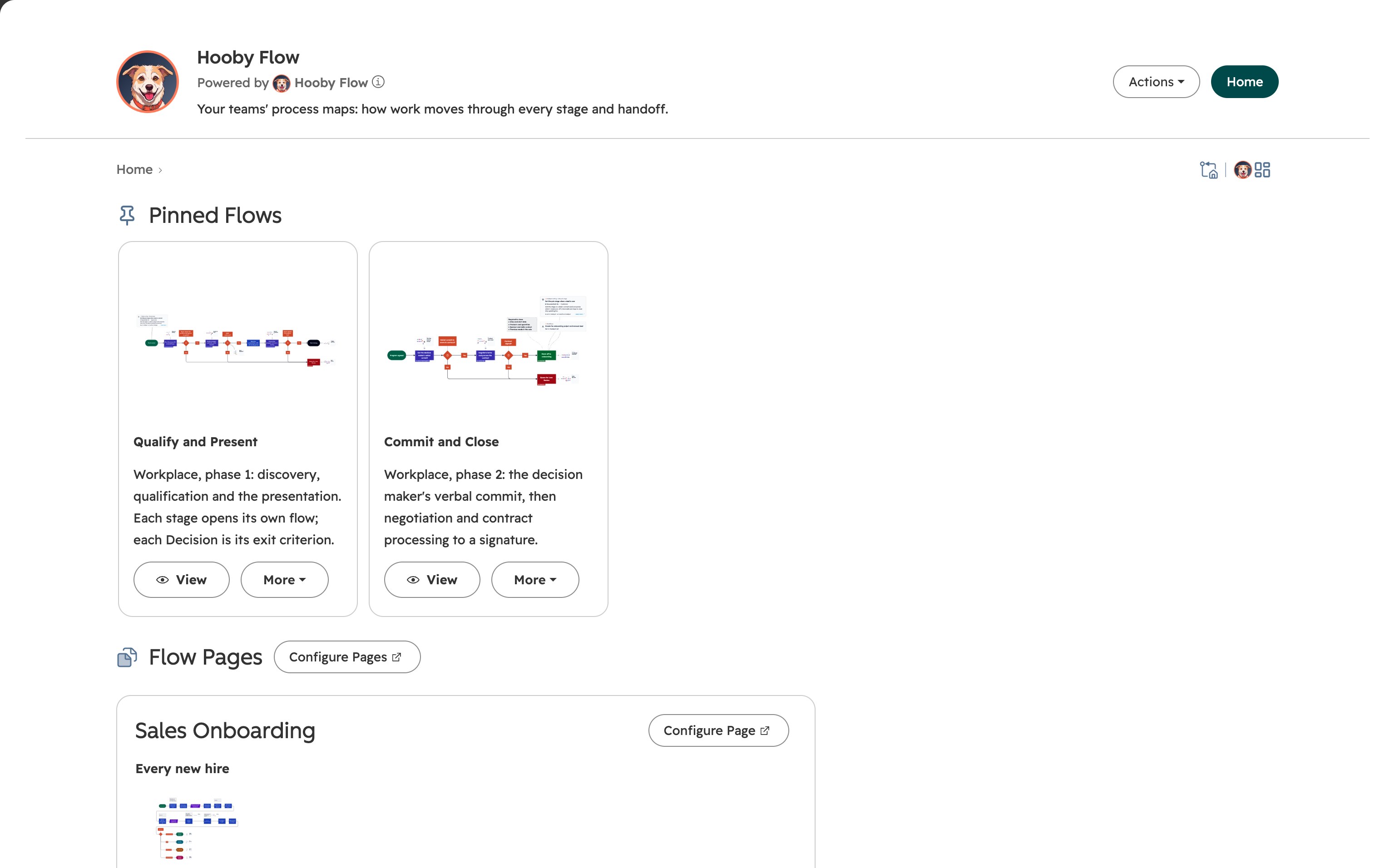
Flow Pages are pages in HubSpot for Flows that aren't tied to one record, listed on Flow Home and set up in the Flow Pages Configurator.
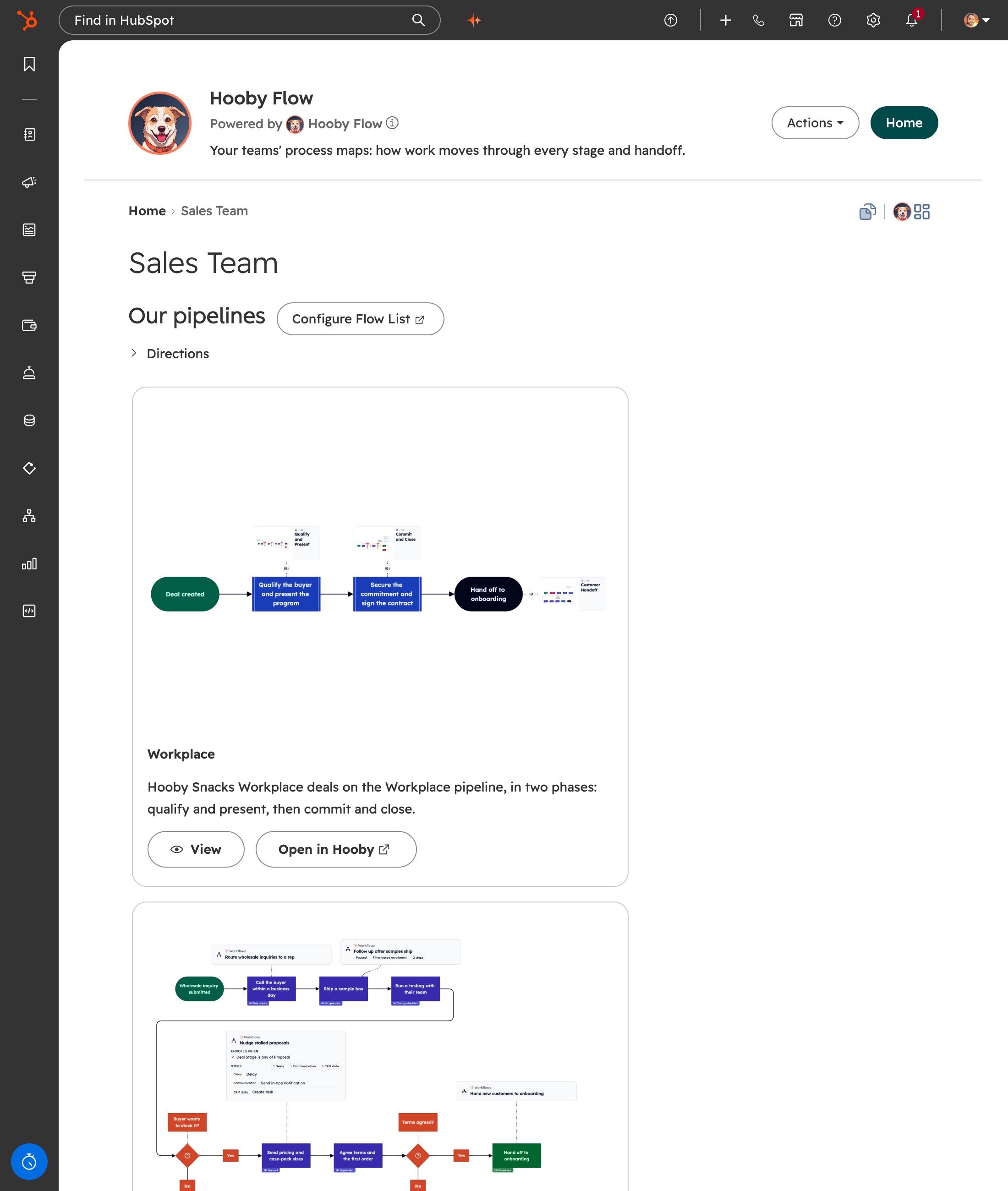
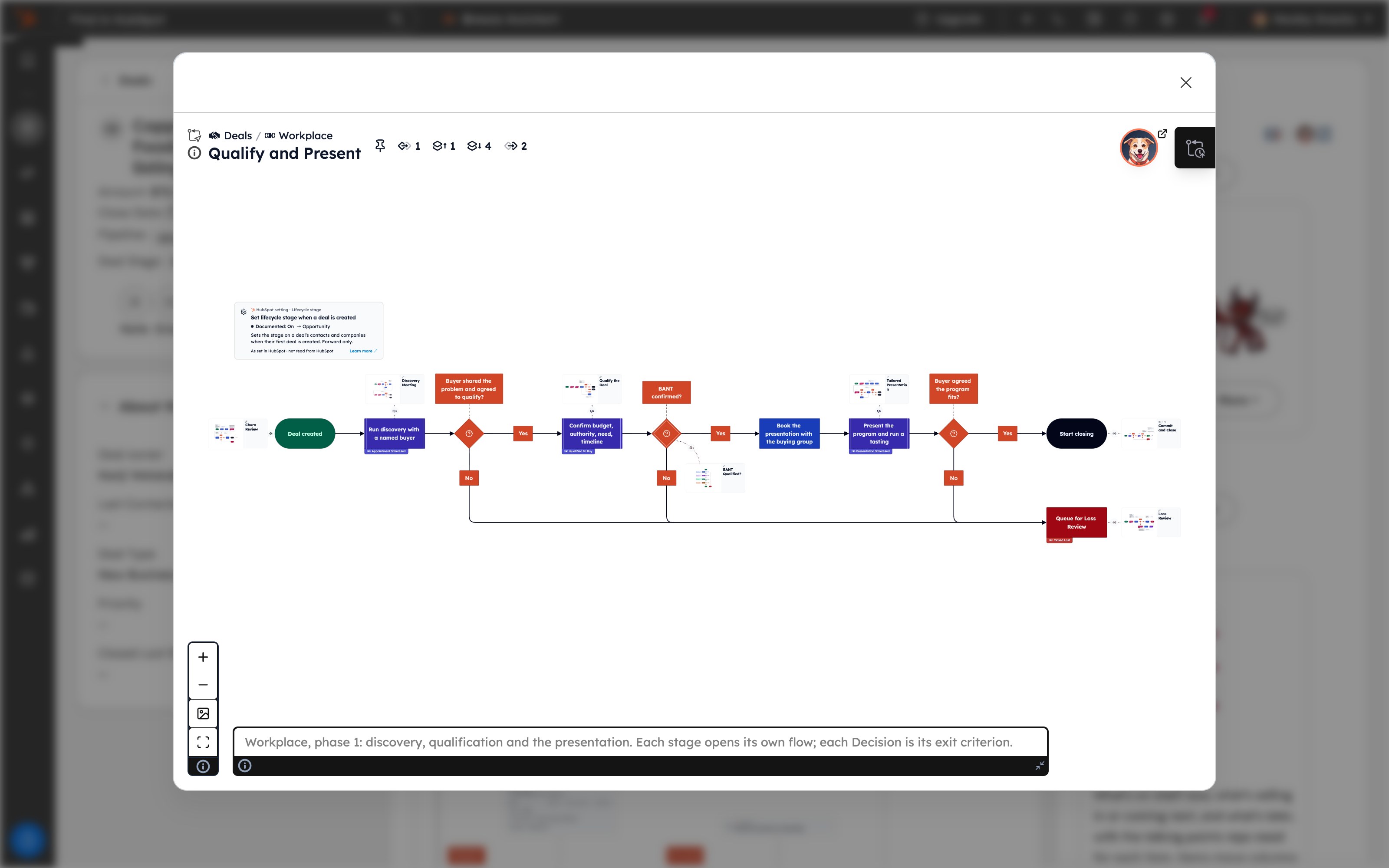
The Flow Navigator opens a Flow on top of HubSpot to read it, follow its links to other Flows and look back through its edits in the Flow Timeline.
Viewer Features
What everyone can do with a Flow: get help, keep it close, share it, and keep up with its changes.
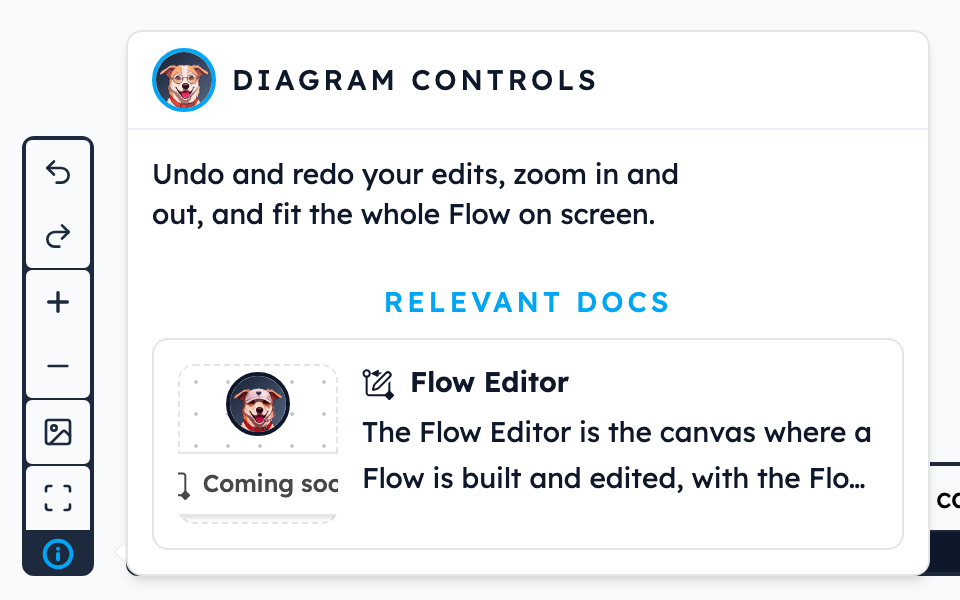
Open the help built into Hooby Flow to see what each part of a Flow means.
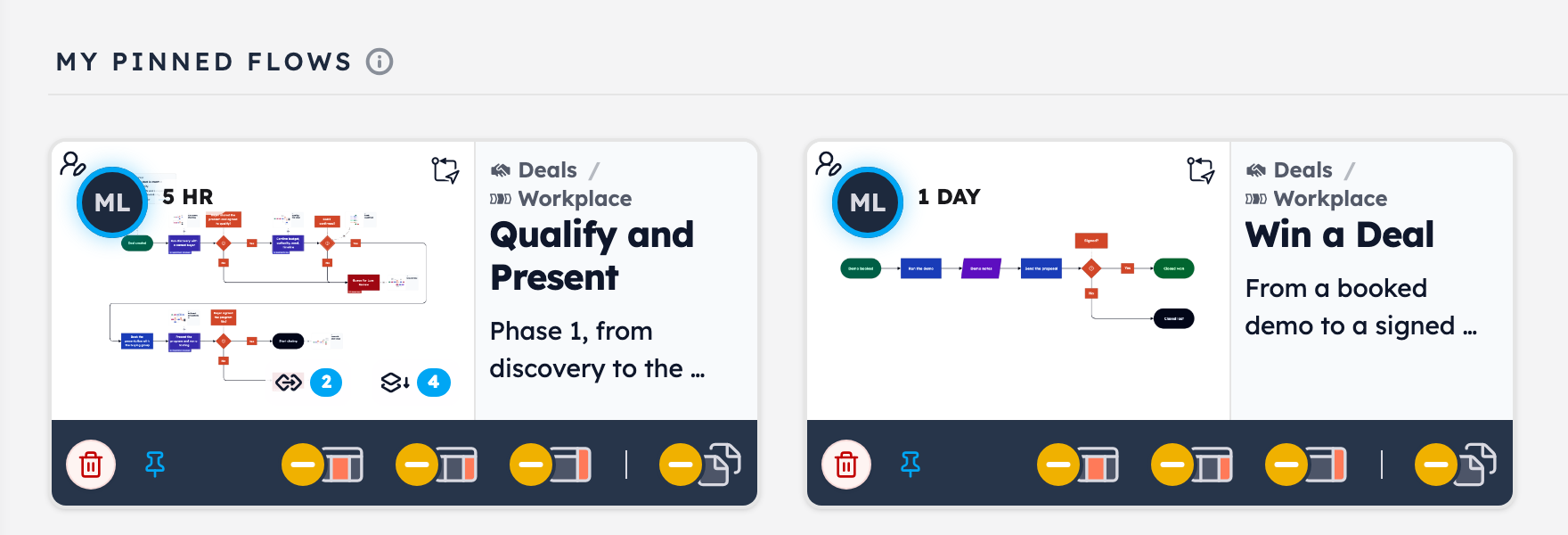
Pin the Flows you use most, so they're on your Dashboard in Hooby Flow and on Flow Home in HubSpot.
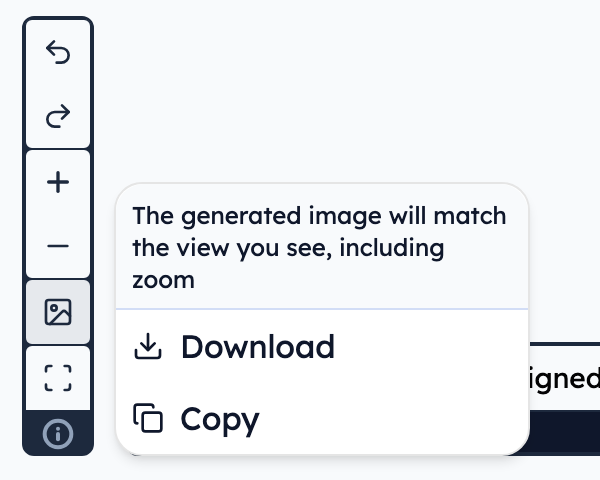
Save a Flow as an image to share in a deck, document or message.
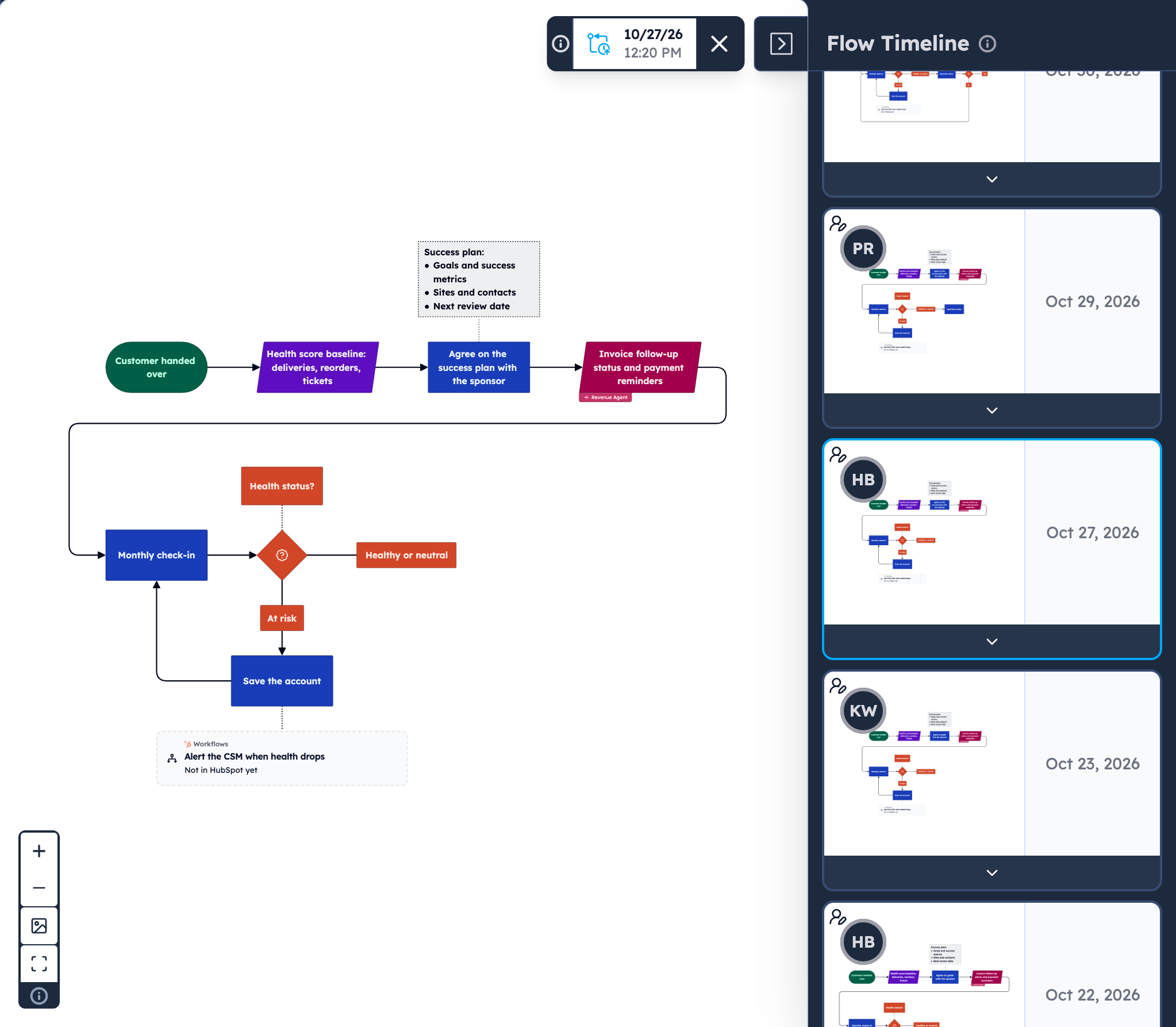
Step back through a Flow's history to see how it looked on any day.
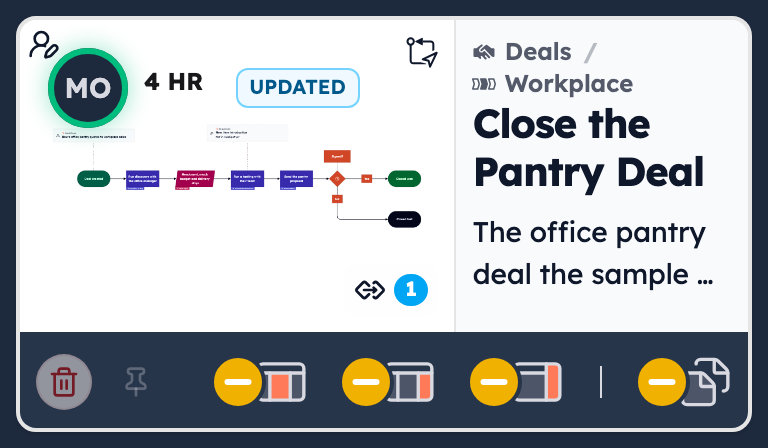
Spot the Flows that have changed since you last opened them, and see what changed.
See who else is viewing or editing a Flow right now.