

Navigating the Flow Timeline
Every change to a Flow is kept. The Flow Timeline steps back through them, so you can see how a Flow looked on any day and who changed it. It works the same in Hooby Flow and in the Flow Navigator in HubSpot.
Opening the Timeline
Click the Flow Timeline tab () on the right edge of the Flow. In the Flow Navigator, it's beside Open in Hooby Flow. The Timeline opens in a panel on the right, and the tab turns into an arrow pointing right: click it to close the panel.
Days and Edits
The Timeline lists the Flow's changes by day, newest first, in your HubSpot account's time zone. Each day shows who changed the Flow that day, and a picture of how it looked by the end of it. Changes Hooby Flow made itself show as System.
Expand a day to list every edit in it: what changed, like Edited node or Linked Flow, who made the change and when. Older days load as you scroll down.
Viewing the Past
Select a day or an edit to show the Flow as it was at that point. A pill at the top of the Flow shows the date and time you're looking at, and its link indicators show the Flows it linked to then.
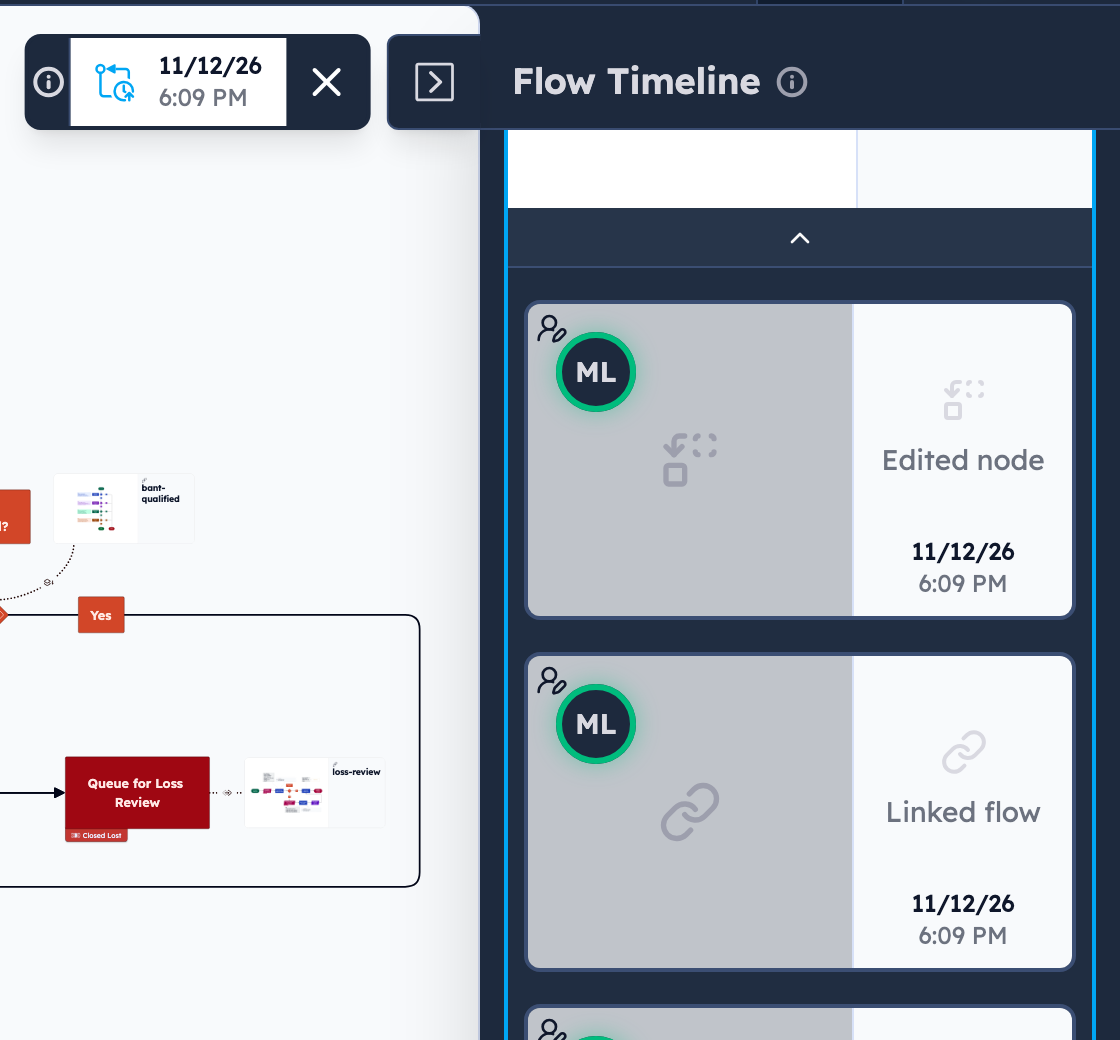
While you're looking at the past, the Flow can't be changed: the Palette and the undo and redo controls are hidden, even for Editors. Click the × on the pill to go back to the Flow as it is now.
In the Flow Navigator, Open in Hooby Flow opens Hooby Flow at the same point in the Flow's history.