

Exporting Flows as Images
Capture a Flow as a picture to put in a slide deck, a document or a message. You can capture a Flow in Hooby Flow and in the Flow Navigator in HubSpot. Capturing works the same in both, but only Hooby Flow can copy the image.
Capturing a Flow
- Frame what you want. The image matches the view you see, including zoom, so pan and zoom to the part of the Flow you want to share. To capture the whole Flow, click Fit view first.
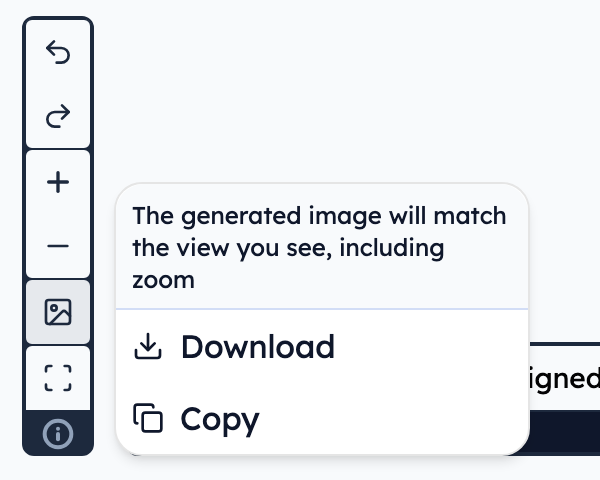
- Click Capture Flow as image () in the controls at the bottom left.
- Choose Download or Copy. Download saves a PNG file named after the Flow.
Copying the Image
In Hooby Flow
Copy puts the image on your clipboard, ready to paste into a slide or a message. Some browsers don't allow copying images: there, Copy downloads the image instead, and says so.
In HubSpot
The Flow Navigator can't copy images. It opens inside HubSpot's page, and HubSpot doesn't let it use your clipboard, so Copy always downloads the image instead. To paste a Flow straight into a slide or a message, open it in Hooby Flow with Open in Hooby Flow and copy it from there.
What's in the Image
Only the Flow: its elements, accessories, connections and link cards. The controls, the Flow's description, the Palette and the avatars of who's there are left out. The image is captured at three times your screen's resolution, so it stays sharp in a deck or a printed document.