
Flow Pages
Flow Pages are pages inside HubSpot for Flows that aren't about any one record: a team's processes, a quarter's priorities, how onboarding works. Each page is made of titled sections of Flows, set up in the Flow Pages Configurator.
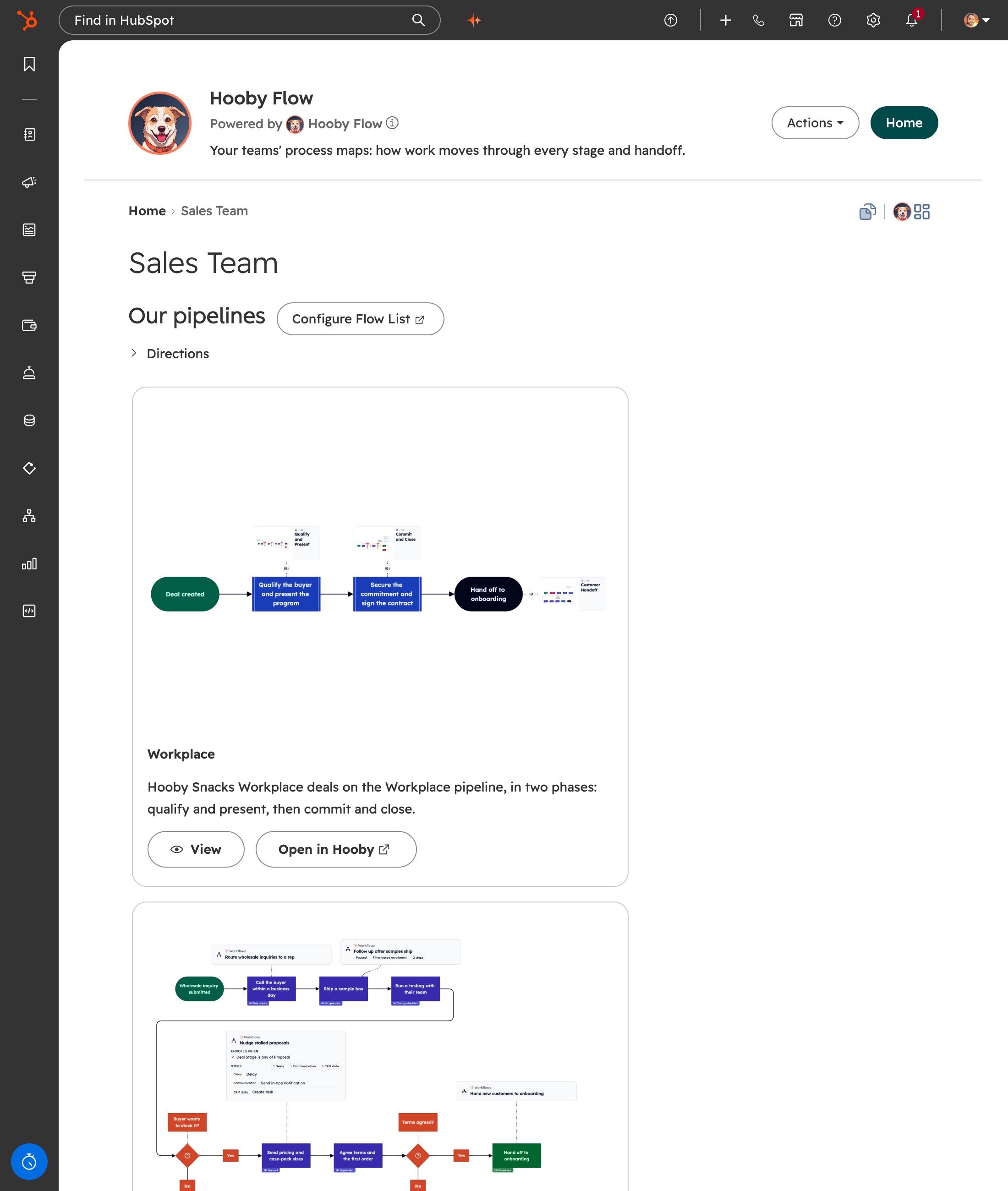
Getting to a Flow Page
Every Flow Page is listed on Flow Home. Click Go to Page on its card to open it.
In Hooby Flow, Open page in HubSpot in the Flow Pages Configurator opens a page as readers see it.
What a page shows
At the top, the breadcrumbs lead back to Flow Home, with the dashboard icon () in the top right corner. Under them are the page's title and its sections, in order. Each section has:

- A title. Beside it, people who can change pages see Configure Flow List, which opens this section in the Flow Pages Configurator.
- Directions, when the section has a description: a panel under the title that opens to show it.
- The section's Flows, as large tiles with each Flow's image, name and description.
A section with no Flows yet shows an empty tile in their place, with Configure Flow List for people who can change pages, or Open Dashboard for everyone else.
Flow tiles
Tiles on a Flow Page work like the tiles on a record card: the image shows the whole Flow, Updated marks a Flow that's changed since you last opened it, View opens the Flow in the Flow Navigator, and Open in Hooby opens it in Hooby Flow. For more, jump to Flow tiles.

For the other cards and pages in HubSpot, jump to HubSpot.