
Sidebar Card
The Sidebar Card puts Flows in the right-hand sidebar of a HubSpot record, beside the record's details and activity. It's always in view while someone works the record, so it suits the few Flows they'll reach for most. The Flows on it are chosen in the Flow Cards Configurator.
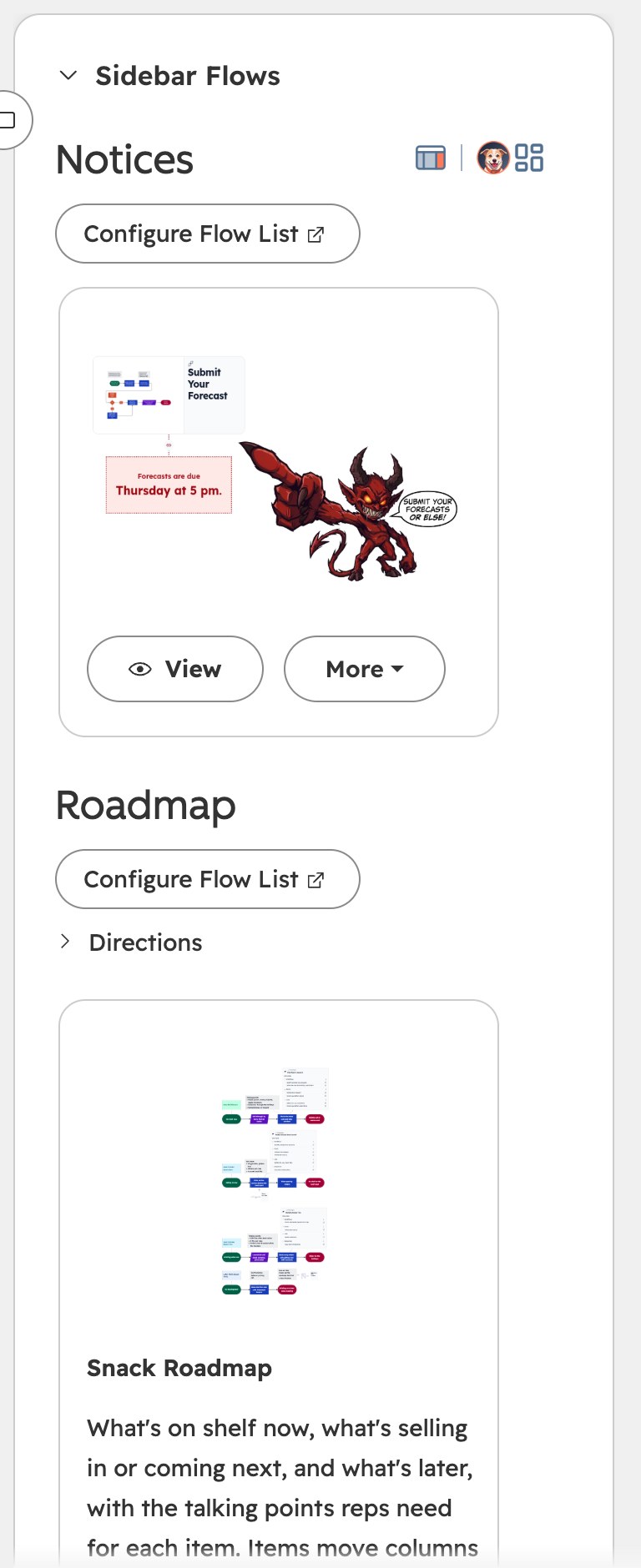
Where it appears
The Sidebar Card is called Sidebar Flows in HubSpot's card library. It can go on Contacts, Companies, Deals, Tickets, Products, Invoices, Orders, Carts, Listings, Projects, Appointments, Services, Courses and custom objects.
It also comes as Help Desk Flows, for the ticket sidebar in HubSpot's help desk. Help Desk Flows shows the same Flows as the Tickets Sidebar Card, so both are set up together.
A HubSpot admin adds it to a record view in HubSpot from the card library, filtered to apps. Every record of an object type shows the same Flows.
What the card shows
The Sidebar Card works like the Tab Card: titled sections, each with optional Directions and its Flows as tiles, and the dashboard icon () in the top right. For what a tile shows and does, jump to Flow tiles.

Because the sidebar is narrow, its tiles are always small: a small image, with or without the Flow's name and description.

For the other cards and pages in HubSpot, jump to HubSpot.