Hooby Flow
Hooby Flow is the web app for creating and editing Flows, and for choosing which Flows appear in HubSpot and on which records and pages. This page covers how Hooby Flow connects to HubSpot, how to move between the two, and the parts of the app.
How it fits with HubSpot
Hooby Flow and HubSpot work as one:
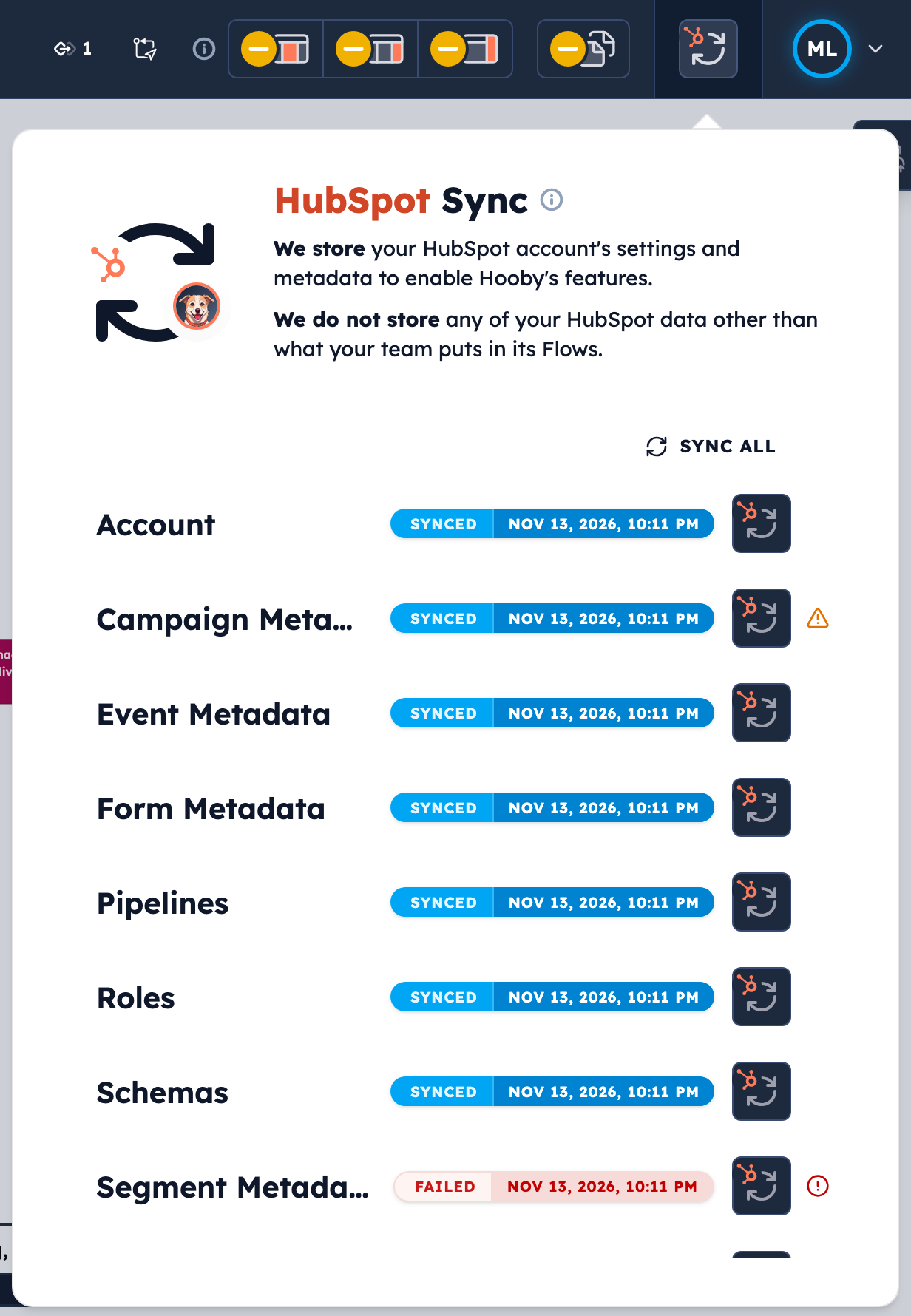
- Knows the HubSpot setup. Hooby Flow keeps a copy of the portal's objects, pipelines, stages, users and HubSpot assets like workflows and forms, kept up to date by HubSpot Sync.
- Decides what HubSpot shows. The Flow Cards Configurator chooses the Flows on HubSpot records, and the Flow Pages Configurator chooses the Flows on Hooby's HubSpot pages.
- Changes show up everywhere. An edit to a Flow appears everywhere that Flow shows in HubSpot.
Moving between Hooby Flow and HubSpot
Hooby Flow and HubSpot are always one click apart, and each opens the other in a new tab, leaving the current page open:
- From HubSpot. Every Hooby Flow card and page in HubSpot has the dashboard icon in the top right corner (). The icon opens the Dashboard in Hooby Flow, already signed in. To go straight to one Flow, use (Open in Hooby ) on that Flow instead.
- To HubSpot. The HubSpot account name, just under the Hooby logo at the top of the Sidebar, opens Flow Home in HubSpot, which lists Pinned Flows and Flow Pages.
- To HubSpot accessories. Workflow, Sequence, Form and Campaign cards in a Flow link to the assets they show. Open In HubSpot in a card's menu goes straight to the asset, as do the campaigns and assets listed on a card. Each opens in a new tab, leaving the Flow open.

Inside Hooby Flow
Start with the Sidebar and Header, which frame every screen, then the Dashboard and Flow Editor, where most work happens, and the Flow Navigator, for reading a Flow without leaving the page you're on. The last three pages cover choosing what HubSpot shows and keeping Hooby Flow in sync with HubSpot.
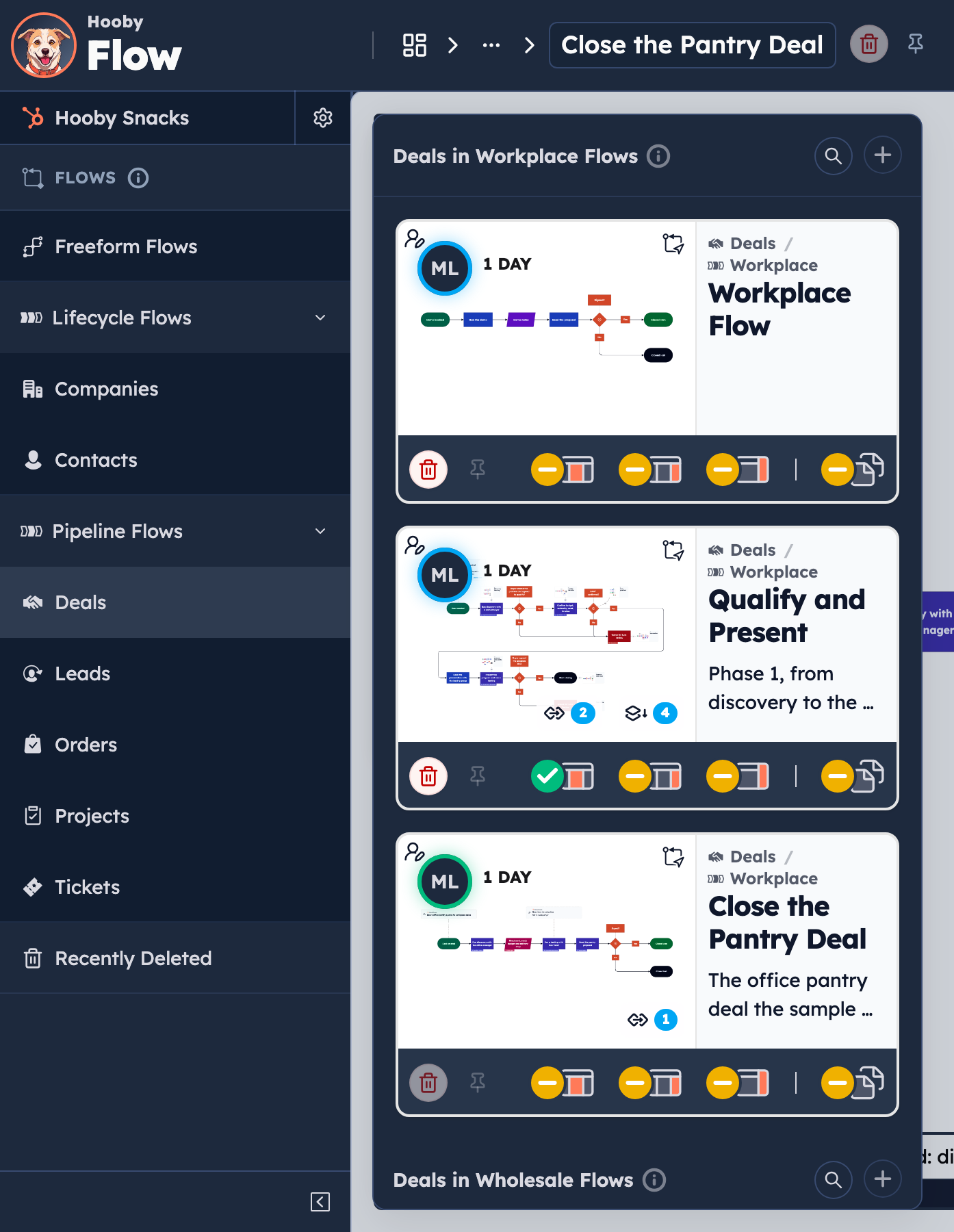
The Sidebar runs down the left of Hooby Flow, with the HubSpot account link to Flow Home, Settings, and every Flow grouped into Freeform Flows, Lifecycle Flows and Pipeline Flows.
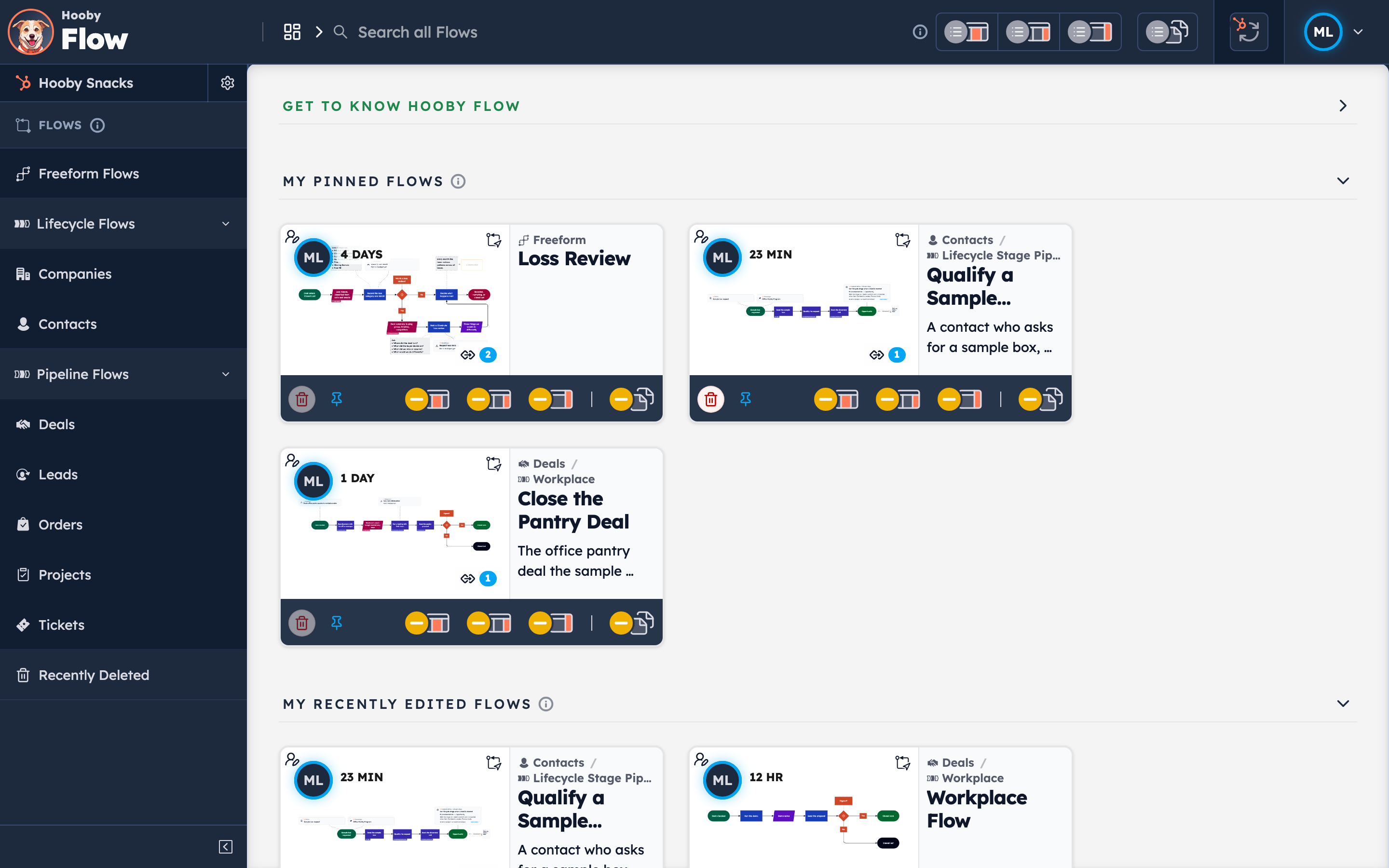
The Header runs across the top of every screen, with breadcrumbs and the controls for HubSpot cards, Flow Pages and HubSpot Sync.
The Dashboard is Hooby Flow's home screen, with Pinned Flows, recently edited Flows and a quick introduction to the app.
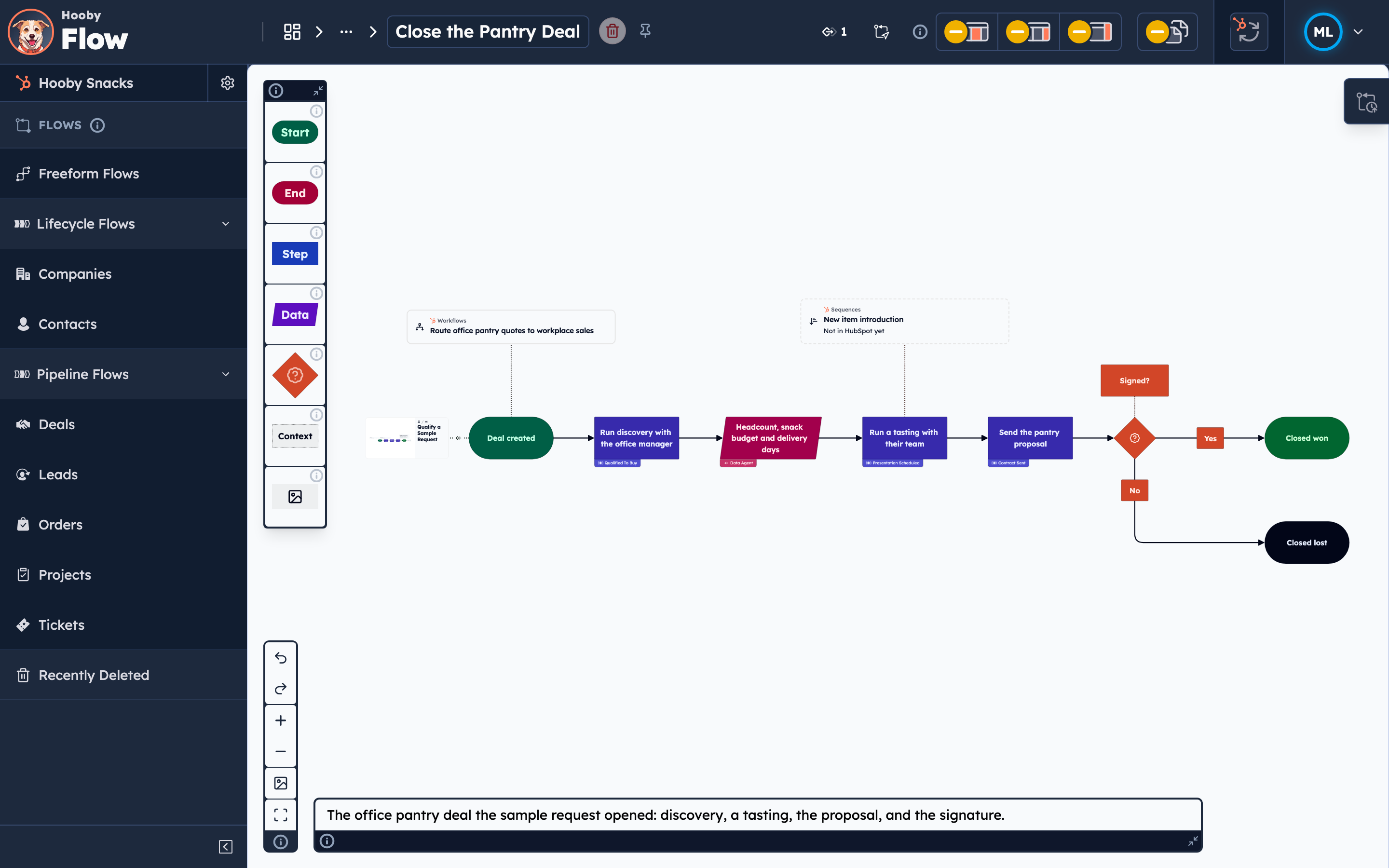
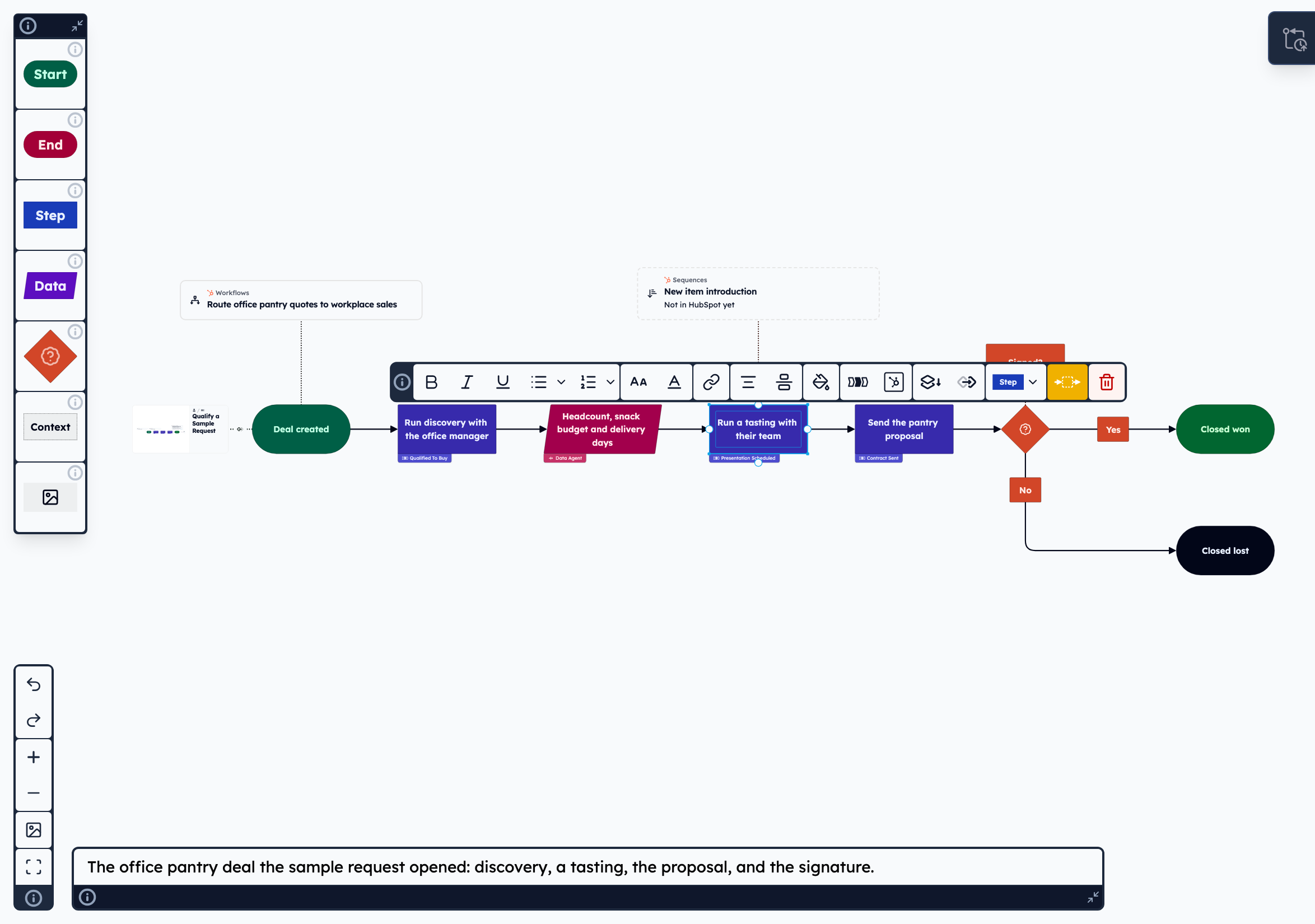
The Flow Editor is the canvas where a Flow is built and edited, with the Flow Timeline keeping every past edit.
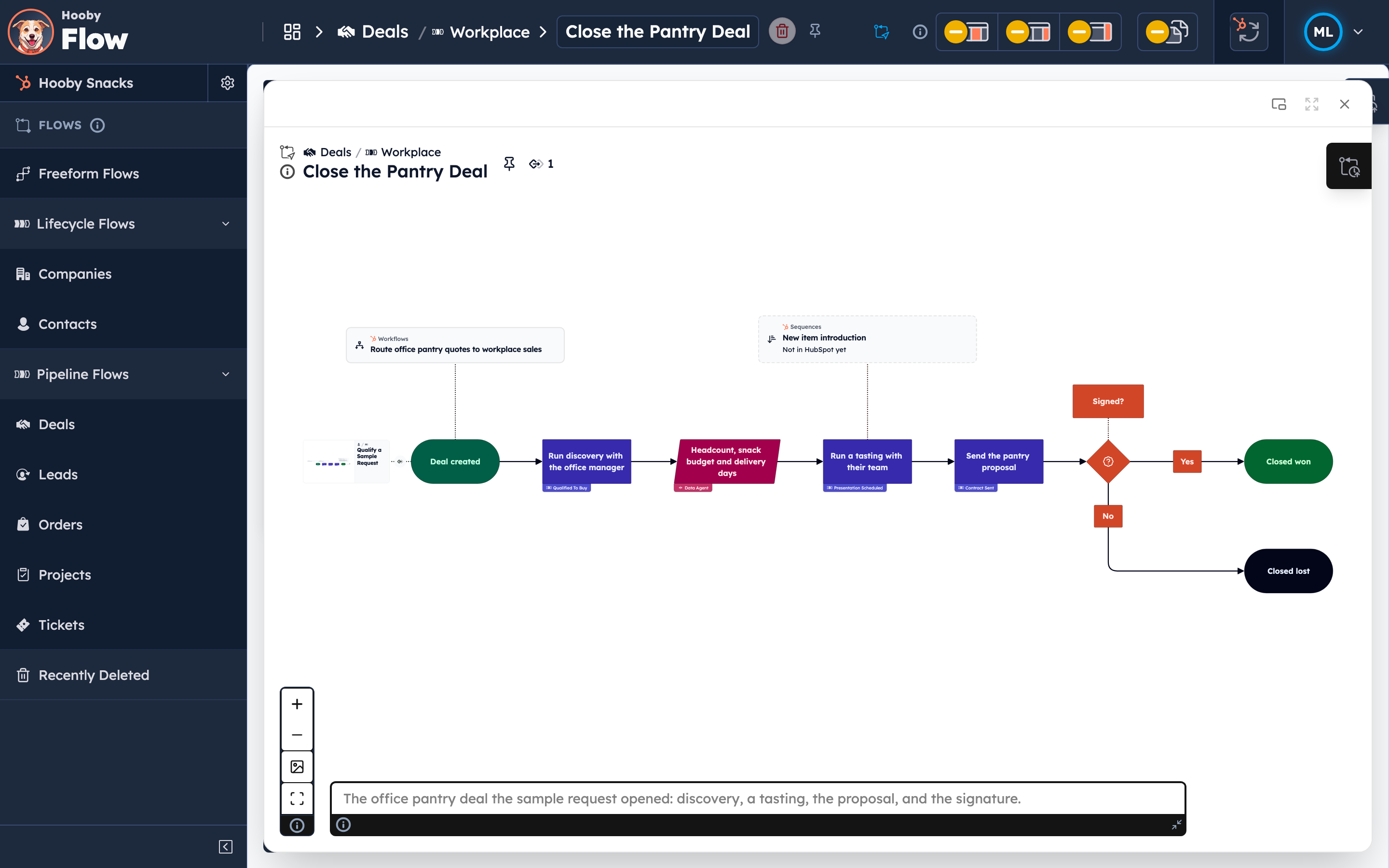
Inside Hooby Flow, the Flow Navigator floats in a panel over the page, to move, resize and keep open while you work underneath it.
Create Flow Pages in HubSpot, and choose the sections and Flows each page shows.
HubSpot Sync keeps Hooby Flow's copy of the HubSpot account's settings and metadata up to date, like users, pipelines, workflows and forms.