
Tab Card
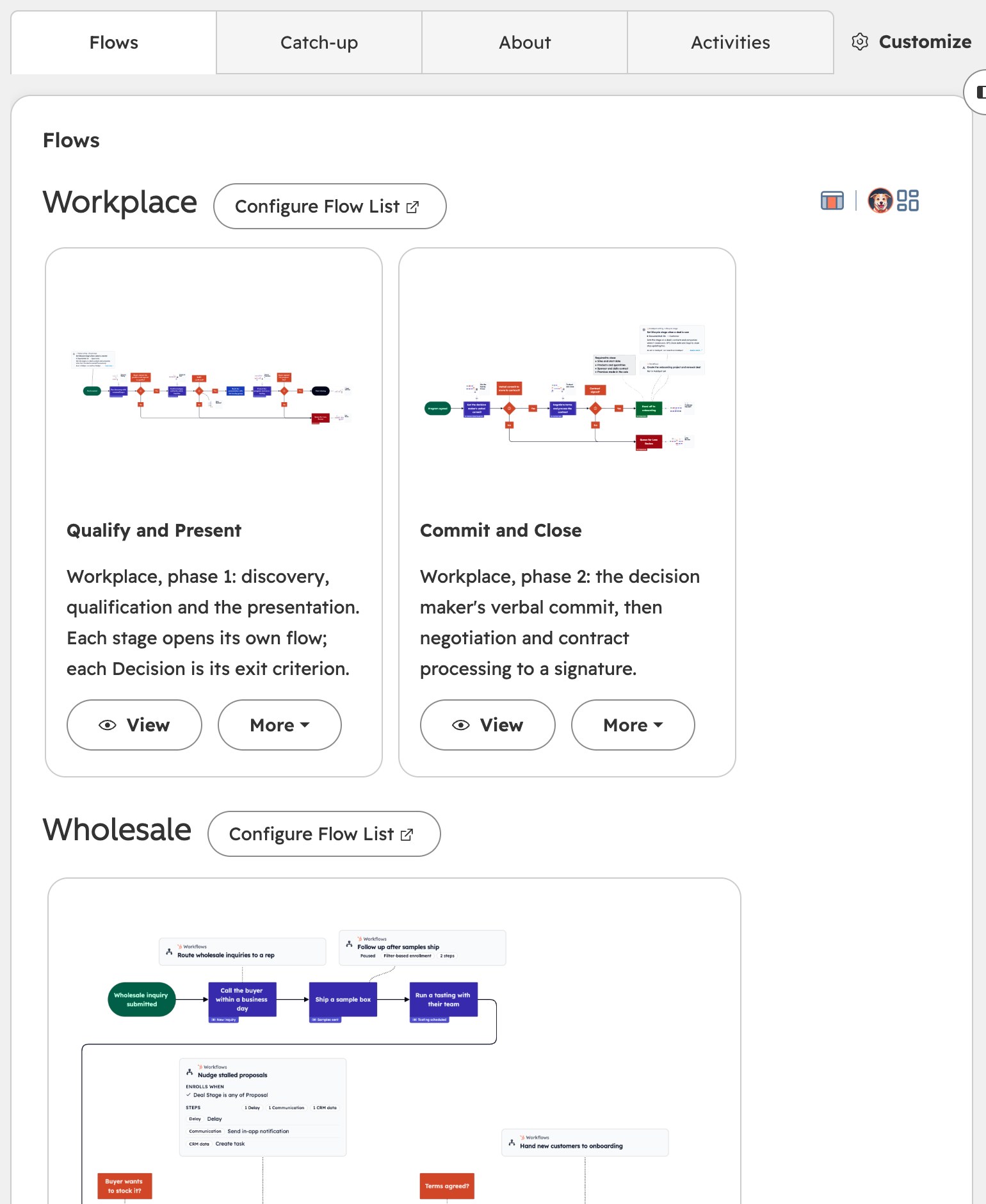
The Tab Card puts Flows on a tab of their own on a HubSpot record. It has the most room of the three record cards, so it's the one for large Flow images and for longer lists of Flows. The Flows on it are chosen in the Flow Cards Configurator.
Where it appears
The Tab Card is called Flows in HubSpot's card library. It can go on Contacts, Companies, Deals, Tickets, Products, Invoices, Orders, Carts, Listings, Projects, Appointments, Services, Courses and custom objects.
A HubSpot admin adds it to a record view in HubSpot: customize the record view, choose the tab, then add the card from the card library, filtered to apps. Once added, it shows on every record of that object type that uses the view.
Every record of an object type shows the same Flows: the card is set up once per object type, not per record.
What the card shows
The card shows its sections in order. Each section has:
- A title. Beside it, people who can change cards see Configure Flow List, which opens this section in the Flow Cards Configurator.
- Directions, when the section has them: a panel under the title that opens to show notes on how to use the section's Flows.
- The section's Flows, as tiles. A section with no Flows says No Flows Configured.
The top right corner of the card has the Tab Card icon and the dashboard icon (), which opens the Dashboard in Hooby Flow, already signed in. A card with no sections set up shows only these icons.

Flow tiles
Each Flow is a tile. Depending on its display style, a tile shows the Flow's image, its name and description, or both.
- The image shows the whole Flow.
- Updated next to the name means the Flow has changed since you last opened it. Hover it to see when. For more, jump to Knowing What's Changed.
- View opens the Flow in the Flow Navigator, on top of the record. When it's closed, the card refreshes to match.
- Open in Hooby () opens the Flow in Hooby Flow in a new tab.
On the Tab Card, each Flow's tile can be large or small, with or without its name and description. Large and small tiles can share a section.

If the card says Unable to load Flows, the message under it says what went wrong. Reload the record, and if it keeps happening, jump to Troubleshooting Flow Cards.

For the other cards and pages in HubSpot, jump to HubSpot.