

The Bulletin Flow
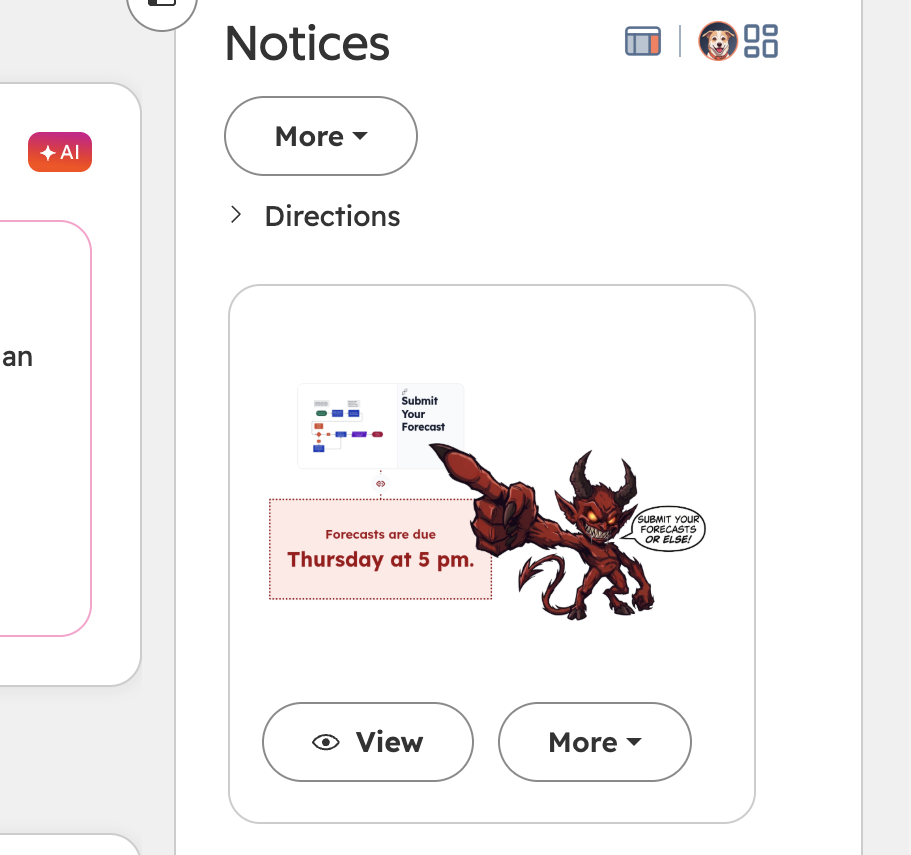
A Bulletin Flow puts one message on every record your team works, where they can't miss it: a deadline, a policy change, this month's priority. The message is the Flow's image, so it reads at a glance on a Sidebar Card, and the details are one click away.
Flow Practices
- Make the image the message. Say it in a Context big enough to read on a small tile, and add an Image that catches the eye. A bulletin is read in passing, so it shouldn't need opening.
- Link to the how, don't repeat it. Keep the process in its own Flow and point to it from the bulletin with a Reference Flow card. The bulletin stays short, and the process stays in one place.
- Show it as a small image only. In the Flow Cards Configurator, set the bulletin's display style to a small image without its title and description, so the image fills the tile.
- Give bulletins their own section. A Notices section first on the card keeps them apart from the Flows people work through, and makes the place to look for news the same on every record.
- Take it down when it's done. A bulletin that's always there stops being read. Remove it from its section when the deadline passes or the change has landed.
The example: Hooby Snacks' forecast deadline
Hooby Snacks' reps submit their forecast every Thursday by 5 pm. A bulletin on every deal reminds them, and links to the Flow that shows how. Click the Flow card in Forecast Deadline to jump to Submit Your Forecast below, or copy a Flow to paste into your own portal.
Forecast Deadline
Submit Your Forecast
Putting it on the Deals Sidebar Card
Hooby Snacks shows the bulletin on the Deals Sidebar Card, so it's beside every deal a rep opens. To set it up in the Flow Cards Configurator:
- Open the configurator with the Sidebar button in the Header.
- Choose Deals in the list on the left.
- Add a section from the Section box, name it Notices, and drag it to the top.
- In the right-hand column, open Freeform Flows and add Forecast Deadline to the section.
- On Forecast Deadline's card in the middle column, set the display style to the small image only.
The bulletin now shows on every deal. View opens Forecast Deadline in the Flow Navigator, and its Flow card opens Submit Your Forecast from there.